OpenClaw and OpenClaw API: The Complete Guide
OpenClaw is an automation platform designed to help users manage digital tasks, integrate services, and build AI-driven workflows. Through OpenClaw's API integrations with AI models such as Kimi K2.5, users can connect tools, automate processes, and streamline complex operations across different environments. This guide explains what OpenClaw is, how it works, and how API integrations enable flexible automation within OpenClaw.
What is OpenClaw?
OpenClaw is an open-source assistant that actually gets things done. It runs on your own computer, so you stay in control of your data. You can talk to it from WhatsApp, Telegram, Discord, Slack, or other chat apps you already use, and ask it to handle real tasks like inbox cleanup, sending emails, or managing your calendar. It's built to be extended with skills and plugins, so you can customize it for your workflow.
OpenClaw was formerly known as Clawdbot and Moltbot, and has evolved into a more capable local-first automation platform.
How to install and use OpenClaw with Kimi API: Step by step
Getting your own local AI assistant up and running might seem complicated at first, but with OpenClaw powered by the Kimi API, the setup is quite manageable if you follow a structured approach. Below are the main steps that guide you from downloading the software to having your first conversation with your personalized assistant.
Step 1. Install and Run Your OpenClaw
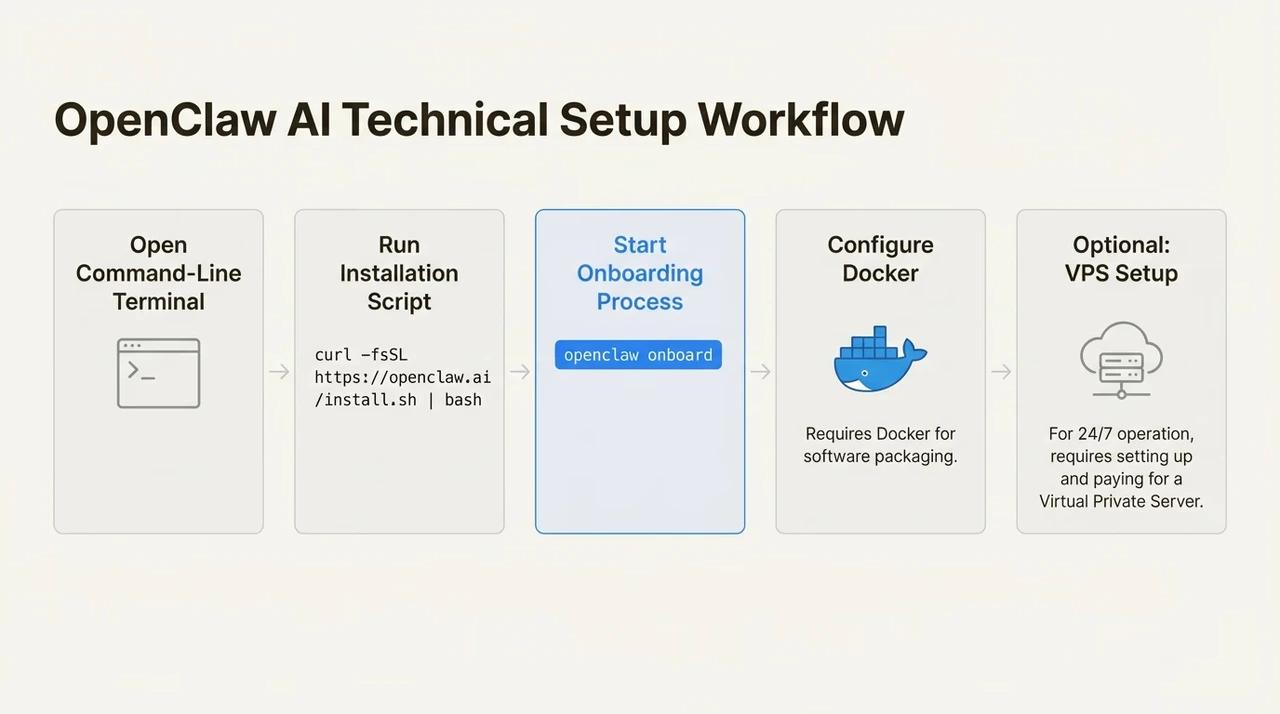
Run the following command in your terminal. If you have a previous OpenClaw installation, execute this command to upgrade to the latest version:
curl -fsSL https://openclaw.ai/install.sh | bashIt's strongly recommended to upgrade to version 2026.2.3 or above. OpenClaw supports Kimi K2.5 models.
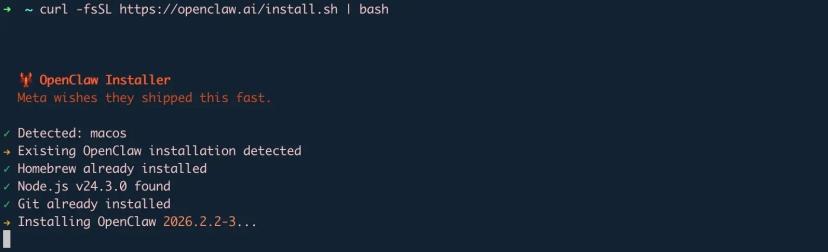
Here's what the installation process looks like:
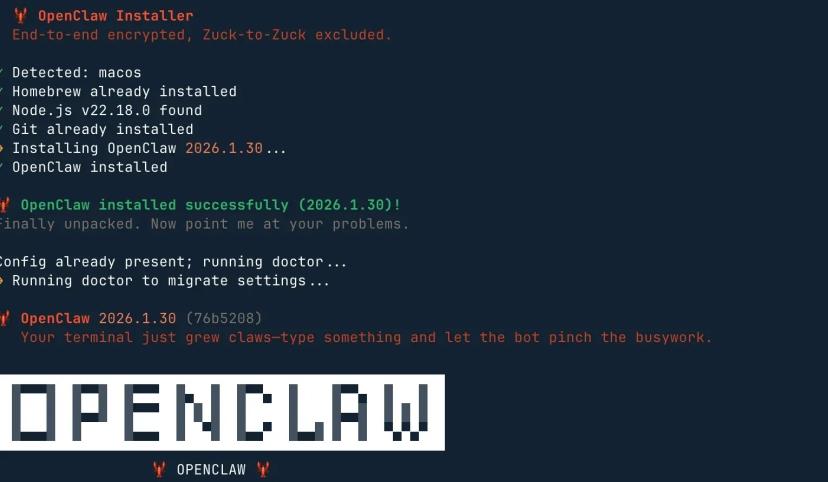
Step 2. Ensure Risky Note
Click Yes to move forward with the process.

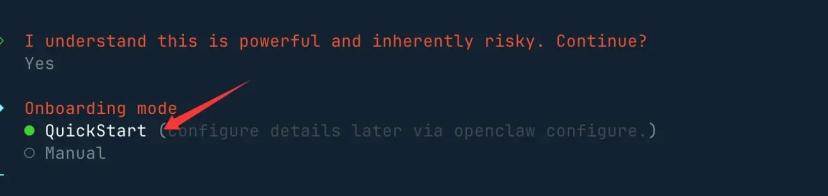
Step 3. Select Onboarding Mode
Select QuickStart.
Step 4. Select Model/auth Provider
Select Moonshot AI (Kimi K2.5).
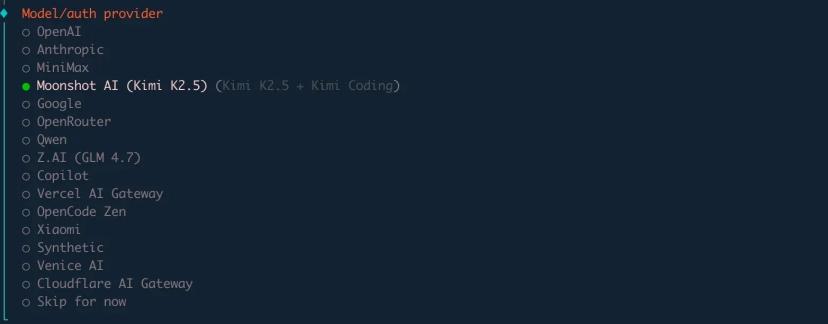
Step 5. Select Model/auth Method
Select Kimi API Key (.ai).

Step 6. Activate your Kimi Platform
To connect OpenClaw, activate your Kimi API Key via Kimi Platform (opens in a new tab). While a $5 recharge earns you a $5 bonus voucher, we recommend $20+ to unlock Tier 2 access. This reduces latency and ensures your OpenClaw agent handles complex and multi-step tasks.
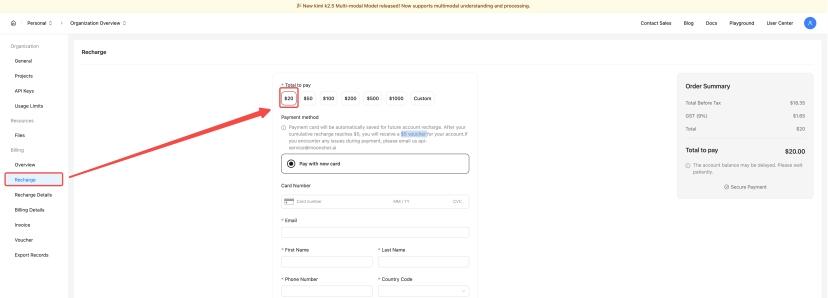
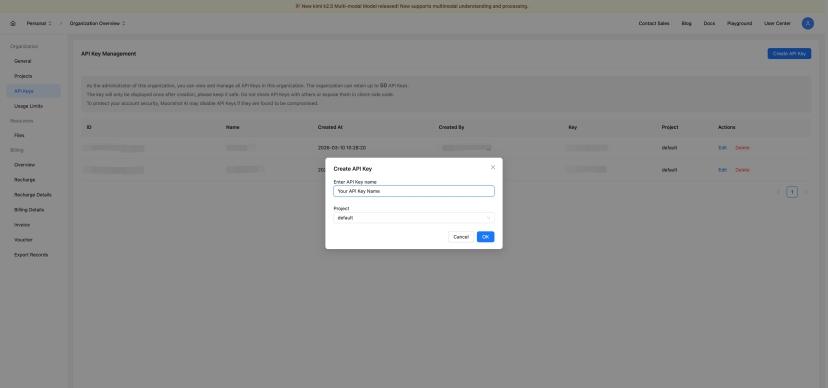
Step 7. Create A Kimi API Key
Access the API Keys section and click Create API Key. Note that you should keep your API Key in a secure and accessible place. It only shows once when you create it.
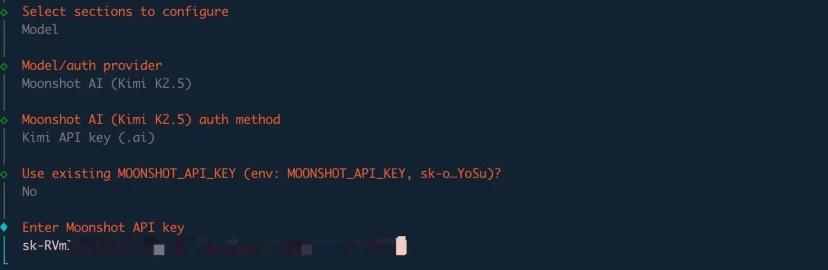
Step 8. Enter API Key
Input your key from Step 7.
Step 9. Select Default model
Select Keep current (moonshot/kimi-k2.5).

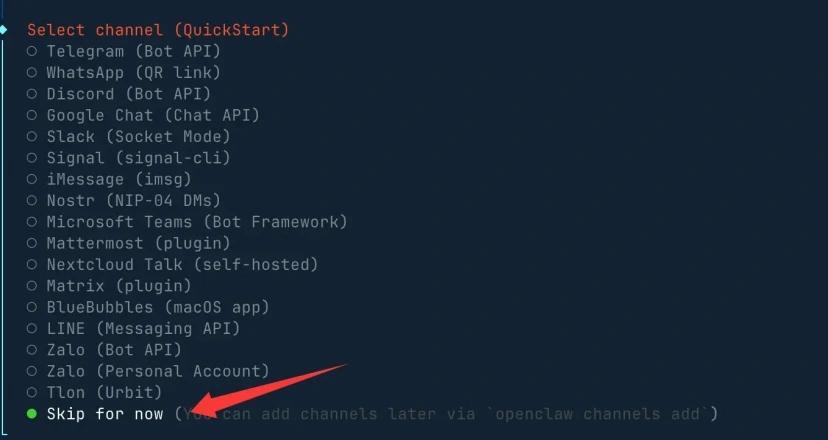
Step 10. Select Channel
Choose which app you want to connect to your OpenClaw. If you have no idea, just skip it.
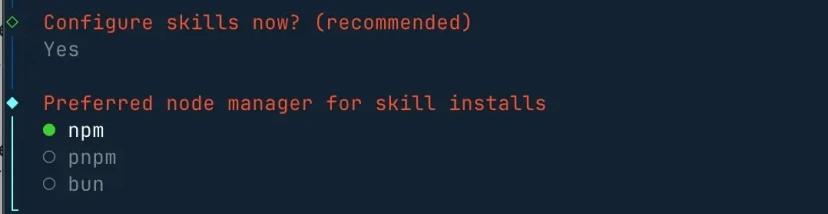
Step 11. Configure for Performance
Use port 18789, select npm for skills, and click Yes for all other prompts to activate the full feature set.
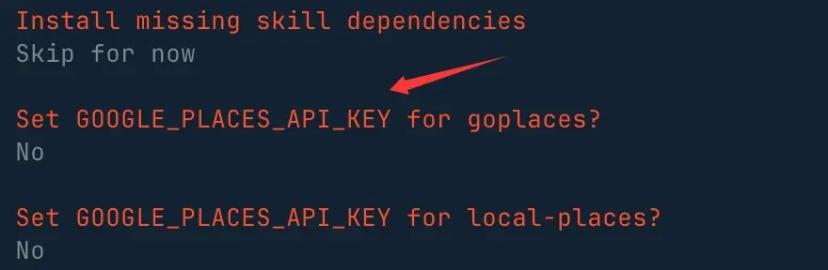
Step 12. Set Up Skills
Choose the basic skills here or just skip.

Step 13. Remaining API keys
Select no if you don't have them.
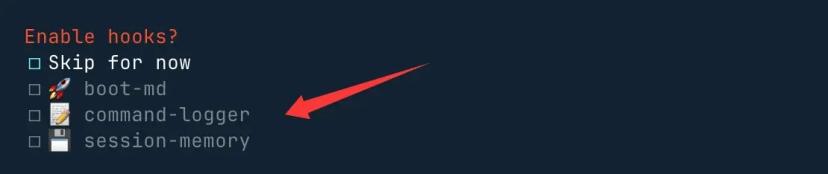
Step 14. Enable Hooks
Enabling these three hooks can log sessions and activity.
Step 15. Run Your OpenClaw
Open a web browser and go to:
http://127.0.0.1:18789After all the above is done, enjoy your OpenClaw.
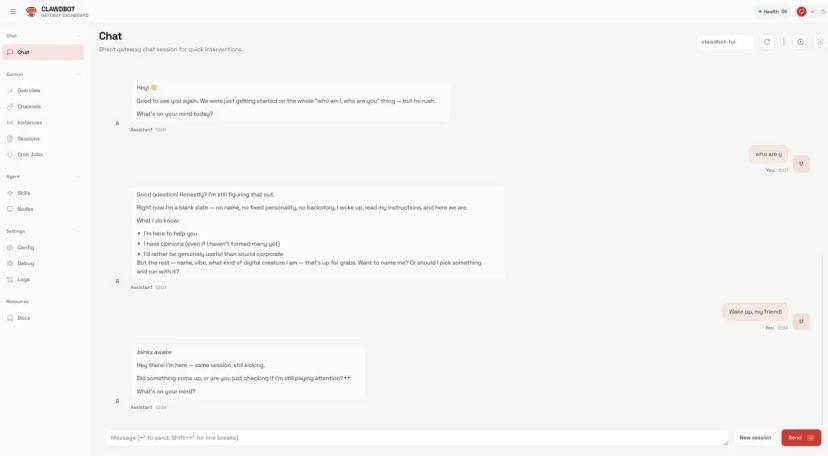
OpenClaw API: How it works
The OpenClaw API enables OpenClaw to connect with external AI services, applications, and automation tools. Through the OpenClaw API, developers can send requests, receive model responses, and trigger actions across different systems without relying solely on local workflows.
In a typical setup, OpenClaw sends structured prompts or task instructions through the OpenClaw API to connected services such as the Kimi API. The external model processes the request and returns structured outputs, which OpenClaw then uses to execute commands, manage tasks, or automate multi-step workflows.
Because the OpenClaw API supports flexible integrations, users can extend OpenClaw beyond its default environment. By connecting APIs for AI models, databases, or productivity tools, developers can build scalable automation pipelines and intelligent task orchestration across multiple platforms.
Troubleshooting common issues
Troubleshooting OpenClaw issues usually come down to configuration, permissions, or connectivity settings. Most problems are easy to fix once the root cause is clear. The points below cover common issues users face and practical ways to resolve them:
"Command not found" errors & PATH issues
This problem is quite common because OpenClaw or its dependencies are not added to the Windows path system. Checking the installation paths and environment variables often fixes it. Reopening the terminal/rebooting also makes recent changes take effect.
API key invalid or misconfigured
Problems with API keys are caused when one of them is missing, expired, or in the wrong place. Examine configuration files and also environment variables. Regenerating the key from the provider and re-entering all settings fixes this issue most of the time.
Connectivity issues with messaging apps
Messaging app problems usually stem from webhook, token, or permission misconfigurations. Verifying app credentials and network access is important. Firewall rules, proxy settings, or VPNs may also block proper connections.
Community tips & Reddit-sourced advice
Messaging app problems usually stem from webhook, token, or permission misconfigurations. Verifying app credentials, settings, and network access is important. Firewall rules or proxy settings may also block proper connections entirely.
Key features of OpenClaw
This agent platform stands out because its features are built around control, flexibility, and real-world automation. Each capability focuses on keeping users in charge of their data while expanding what AI can do beyond simple conversations. The following features explain how it achieves this balance:
Local execution & deployment flexibility
It runs directly on personal hardware such as laptops, homelabs, or VPS setups. By executing locally, OpenClaw allows users to decide how data is processed and where resources are allocated, offering more flexibility in performance tuning, system configuration, and long-term operation.
Chat app integrations
This assistant connects with popular platforms like WhatsApp, Telegram, Slack, Discord, and Signal. These integrations let users interact with the system from tools they already use every day without changing communication habits.
Task automation capabilities
It engages in the mundane automation of clearing inboxes, managing calendars, and running system commands. This makes it a tactile personal assistant, which cuts down on manual labour and daily productivity.
Extensible skills and plugins
It supports a growing skill ecosystem through ClawHub, where the community builds and shares extensions. New skills can be added easily to match specific workflows, specialised tasks, and evolving automation requirements.
Model flexibility
The system supports AI models from multiple providers, including Kimi K2.5. This flexibility lets users choose models based on performance, cost, privacy needs, and compatibility with different hardware setups and deployment environments.
How OpenClaw works | Architecture & workflow
OpenClaw works through modular architecture built around a CLI, an agent gateway, and chat app connectors that handle user inputs. Requests are routed to selected model providers such as Moonshot's Kimi, OpenAI, Claude, or local models based on user choice. The system then triggers skill execution through structured agent loops, allowing tasks to run, evaluate results, and repeat actions until completion.
Use cases & practical applications of OpenClaw
It supports a wide range of real-world use cases where control, automation, and privacy matter most. Its local-first design and flexible architecture make it suitable for both personal and professional environments. The following examples show how different users apply it in practical ways:
Personal assistant that can run locally
OpenClaw works as a personal assistant that runs entirely on local hardware. Sensitive data such as messages, schedules, and notes never leaves the system. This setup may appeal to users who prefer greater control over where their data is processed.
Chat-based workflow management
Users can manage tasks directly from chat platforms like Slack or Telegram. It turns simple messages into structured actions such as reminders, file handling, or task updates. This keeps workflows organised inside familiar communication tools.
Developer automation and local testing
Developers can employ it to bring automation for writing boilerplate code and test flows to their local machines. It also makes it possible to run scripts, validate outputs, and control the development tools without needing cloud services.
System administration and task execution
It is used by system administrators to administer servers, monitor systems, and carry out tasks. Agent loops can be used to automate routine maintenance operations. This increases operational uniformity and minimizes manual labor.
Custom AI tooling and integrations
It supports building custom tools through skills and plugins. Users can integrate internal systems, APIs, and custom logic into one AI-driven workflow. This makes it suitable for specialised automation and advanced use cases.
Conclusion
OpenClaw brings together local execution and powerful automation in a flexible setup, which makes it a practical tool for developers and power users who want more control over their workflows. Its modular design and extensible skills ecosystem enables users to adapt AI workflows to their specific needs. It bridges the gap between convenience and control and, of course, it does it by integrating with chat apps and supporting multiple AI models.
Looking ahead, autonomous AI assistants like OpenClaw are likely to become smarter, more adaptive, and increasingly capable of handling complex tasks independently. This positions it as a leading example of the next generation of personal and professional AI tools.
FAQs
Why is OpenClaw going viral?
It brings together local-first workflows, automation, and cross-platform support in a single tool. Users can run AI agents like Kimi K2.5 on their own hardware, which may help reduce reliance on external services. Its flexibility, performance, and ability to integrate with popular chat apps have contributed to its growth.
Is OpenClaw free?
It is open-source and free to install on your own hardware. Some AI models, including Kimi K2.5, require a paid API key for advanced features and higher usage tiers. This lets users control costs while enjoying powerful AI locally without relying on cloud-only solutions.
Do I need my own AI model to use OpenClaw?
No, you don't need to create your own AI model to use OpenClaw. The platform works with existing models, such as Kimi K2.5, and helps manage tasks like automation, workflows, and chat integration. This means you can run and control powerful AI capabilities without having to build a model yourself.
2026 © Moonshot AIConsoleDocs