> ## Documentation Index
> Fetch the complete documentation index at: https://platform.kimi.ai/docs/llms.txt
> Use this file to discover all available pages before exploring further.
# Use Kimi in Claude Code
> [Claude Code](https://claude.com/product/claude-code) is a programming agent product from Anthropic. Its interface, configuration options, and supported capabilities may change across Claude Code versions. This guide is based on the official Kimi API calling method and describes a general integration approach: forwarding Claude Code model requests to the Kimi API through environment variables.
## Install Claude Code
If you have already installed Claude Code, you can skip this step.
### macOS And Linux
```shell theme={null}
# Install Node.js on macOS and Linux
curl -fsSL https://fnm.vercel.app/install | bash
# Open a new terminal so fnm takes effect
fnm install 24.3.0
fnm default 24.3.0
fnm use 24.3.0
# Install claude-code
npm install -g @anthropic-ai/claude-code --registry=https://registry.npmmirror.com
# Initialize configuration
node --eval "
const fs = require('fs');
const path = require('path');
const os = require('os');
const homeDir = os.homedir();
const filePath = path.join(homeDir, '.claude.json');
if (fs.existsSync(filePath)) {
const content = JSON.parse(fs.readFileSync(filePath, 'utf-8'));
fs.writeFileSync(filePath, JSON.stringify({ ...content, hasCompletedOnboarding: true }, null, 2), 'utf-8');
} else {
fs.writeFileSync(filePath, JSON.stringify({ hasCompletedOnboarding: true }, null, 2), 'utf-8');
}"
```
### Windows
```powershell theme={null}
# Open PowerShell in Windows Terminal
# Install Node.js on Windows
# Right-click the Windows button and click "Terminal"
# Then run the following commands one by one
winget install OpenJS.NodeJS
Set-ExecutionPolicy -Scope CurrentUser RemoteSigned
# Close the terminal window, then open a new terminal window
# Install claude-code
npm install -g @anthropic-ai/claude-code --registry=https://registry.npmmirror.com
# Initialize configuration
node --eval "
const fs = require('fs');
const path = require('path');
const os = require('os');
const homeDir = os.homedir();
const filePath = path.join(homeDir, '.claude.json');
if (fs.existsSync(filePath)) {
const content = JSON.parse(fs.readFileSync(filePath, 'utf-8'));
fs.writeFileSync(filePath, JSON.stringify({ ...content, hasCompletedOnboarding: true }, null, 2), 'utf-8');
} else {
fs.writeFileSync(filePath, JSON.stringify({ hasCompletedOnboarding: true }, null, 2), 'utf-8');
}"
```
## Configure Environment Variables
After installing Claude Code, set the environment variables as shown below and then start Claude.
> **Get an API Key**: Visit [Kimi Open Platform](https://platform.kimi.ai/console/api-keys) to create an API key, and choose the default project.
### macOS And Linux
```shell theme={null}
export ANTHROPIC_BASE_URL=https://api.moonshot.ai/anthropic
export ANTHROPIC_AUTH_TOKEN=${YOUR_MOONSHOT_API_KEY}
export ANTHROPIC_MODEL=kimi-k2.7-code
export ANTHROPIC_DEFAULT_OPUS_MODEL=kimi-k2.7-code
export ANTHROPIC_DEFAULT_SONNET_MODEL=kimi-k2.7-code
export ANTHROPIC_DEFAULT_HAIKU_MODEL=kimi-k2.7-code
export CLAUDE_CODE_SUBAGENT_MODEL=kimi-k2.7-code
export ENABLE_TOOL_SEARCH=false
export CLAUDE_CODE_AUTO_COMPACT_WINDOW=262144
claude
```
### Windows
```powershell theme={null}
$env:ANTHROPIC_BASE_URL="https://api.moonshot.ai/anthropic"
$env:ANTHROPIC_AUTH_TOKEN="YOUR_MOONSHOT_API_KEY"
$env:ANTHROPIC_MODEL="kimi-k2.7-code"
$env:ANTHROPIC_DEFAULT_OPUS_MODEL="kimi-k2.7-code"
$env:ANTHROPIC_DEFAULT_SONNET_MODEL="kimi-k2.7-code"
$env:ANTHROPIC_DEFAULT_HAIKU_MODEL="kimi-k2.7-code"
$env:CLAUDE_CODE_SUBAGENT_MODEL="kimi-k2.7-code"
$env:ENABLE_TOOL_SEARCH="false"
$env:CLAUDE_CODE_AUTO_COMPACT_WINDOW="262144"
claude
```
## Confirm That The Environment Variables Took Effect
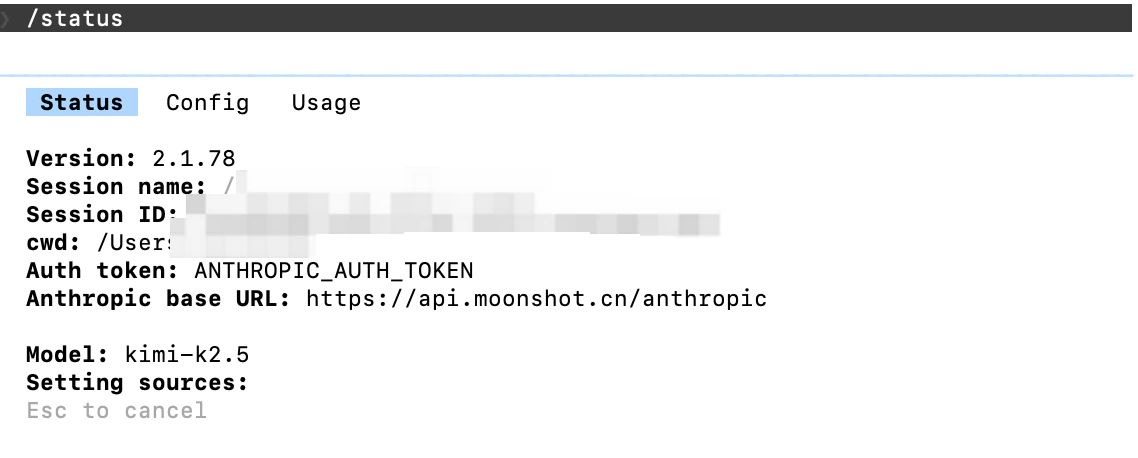
In Claude Code, enter `/status` to confirm the model status:
 ## Try Thinking Mode
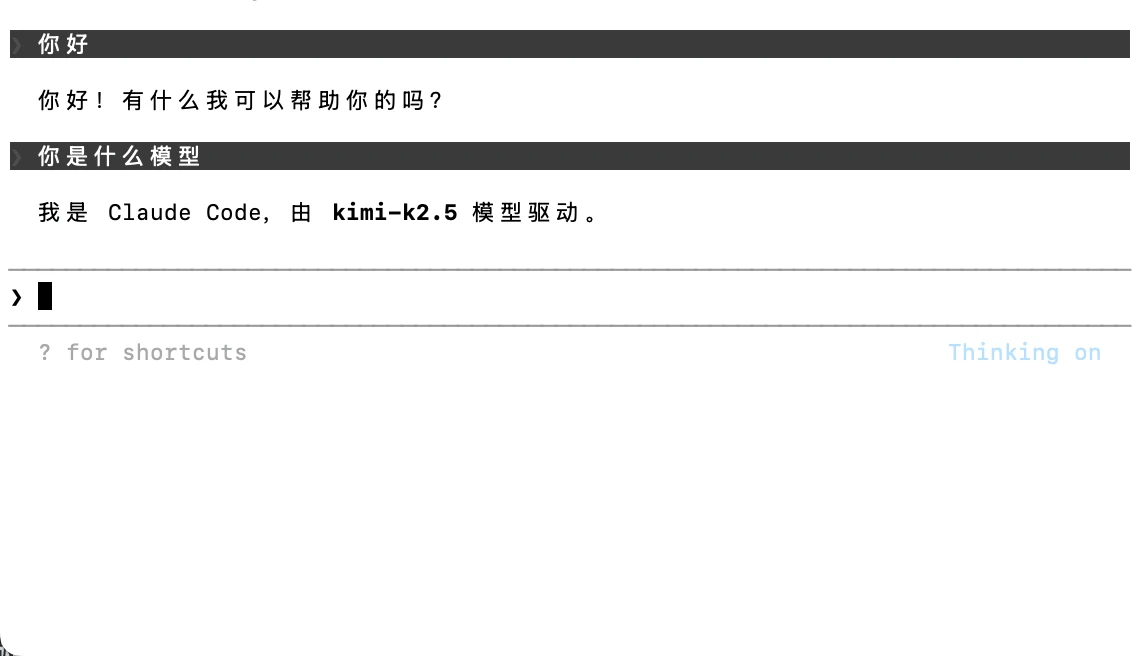
After configuring the model, open Claude Code and press `Tab` to switch modes. If the switch succeeds, you will see the "Thinking on" indicator.
## Try Thinking Mode
After configuring the model, open Claude Code and press `Tab` to switch modes. If the switch succeeds, you will see the "Thinking on" indicator.
 You can now use Claude Code for development normally.