> ## Documentation Index
> Fetch the complete documentation index at: https://platform.kimi.ai/docs/llms.txt
> Use this file to discover all available pages before exploring further.
# Configure ModelScope MCP Server in Playground
Through an official partnership between the Kimi API Platform and ModelScope, you can sync all hosted MCP service configurations under your ModelScope account into Kimi Playground with a single API token. Follow this page when you want models in Playground to call MCP tools.
## Sync ModelScope-Hosted MCP Services
Log in to Kimi Playground ([https://platform.kimi.ai/playground](https://platform.kimi.ai/playground)) and make sure you can have basic conversations with the Kimi K2 model.
MCP services are added in "MCP Server Settings", where ModelScope is selected as the default MCP service provider. If you haven't used the ModelScope MCP marketplace before, first refer to the [ModelScope official documentation](https://modelscope.cn/mcp/kimi-playground) to select and host your MCP services; you can also discover numerous MCP servers in the ModelScope community.
### Open MCP Server Settings
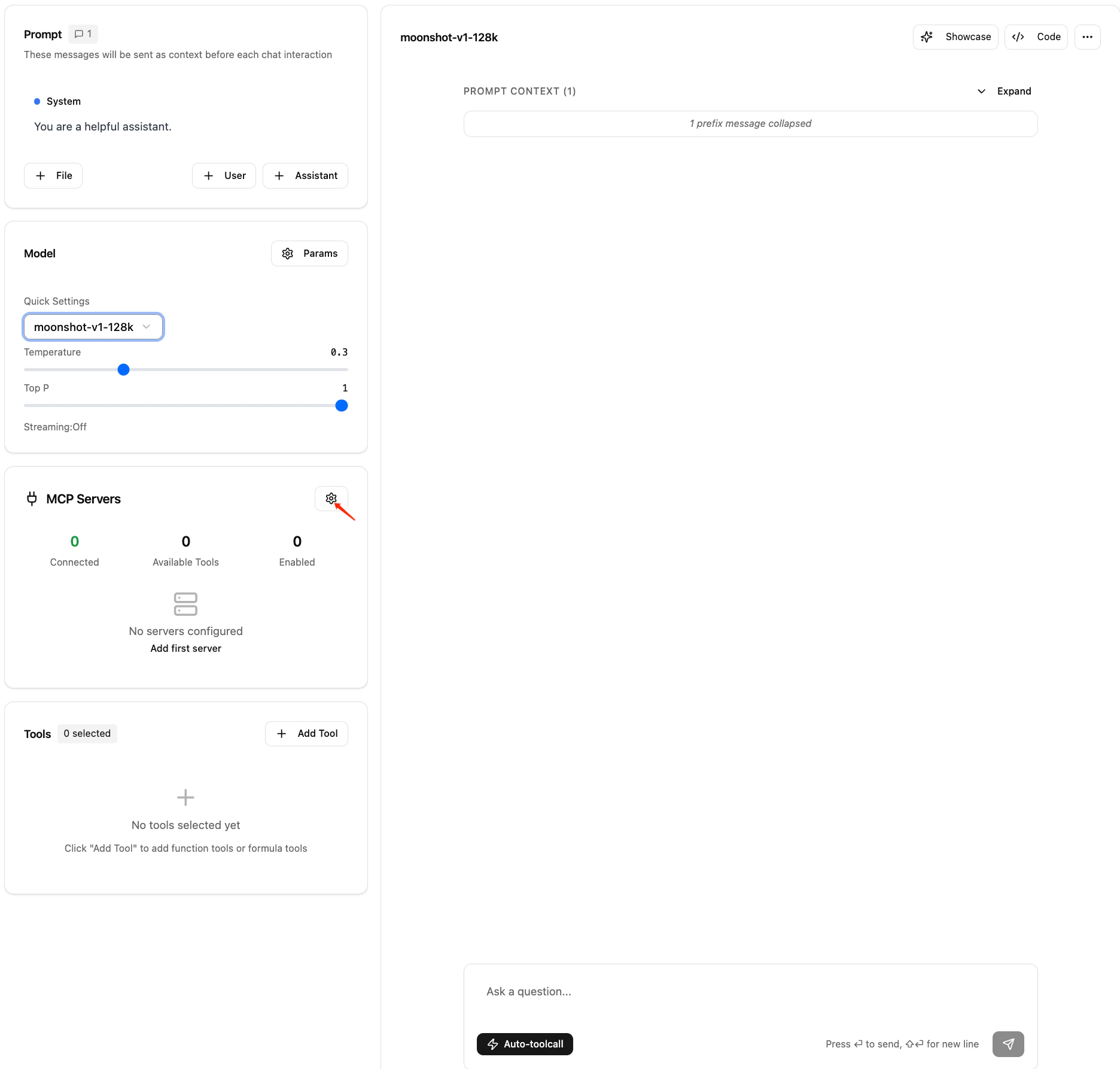
Click the configuration button to open "MCP Server Settings":
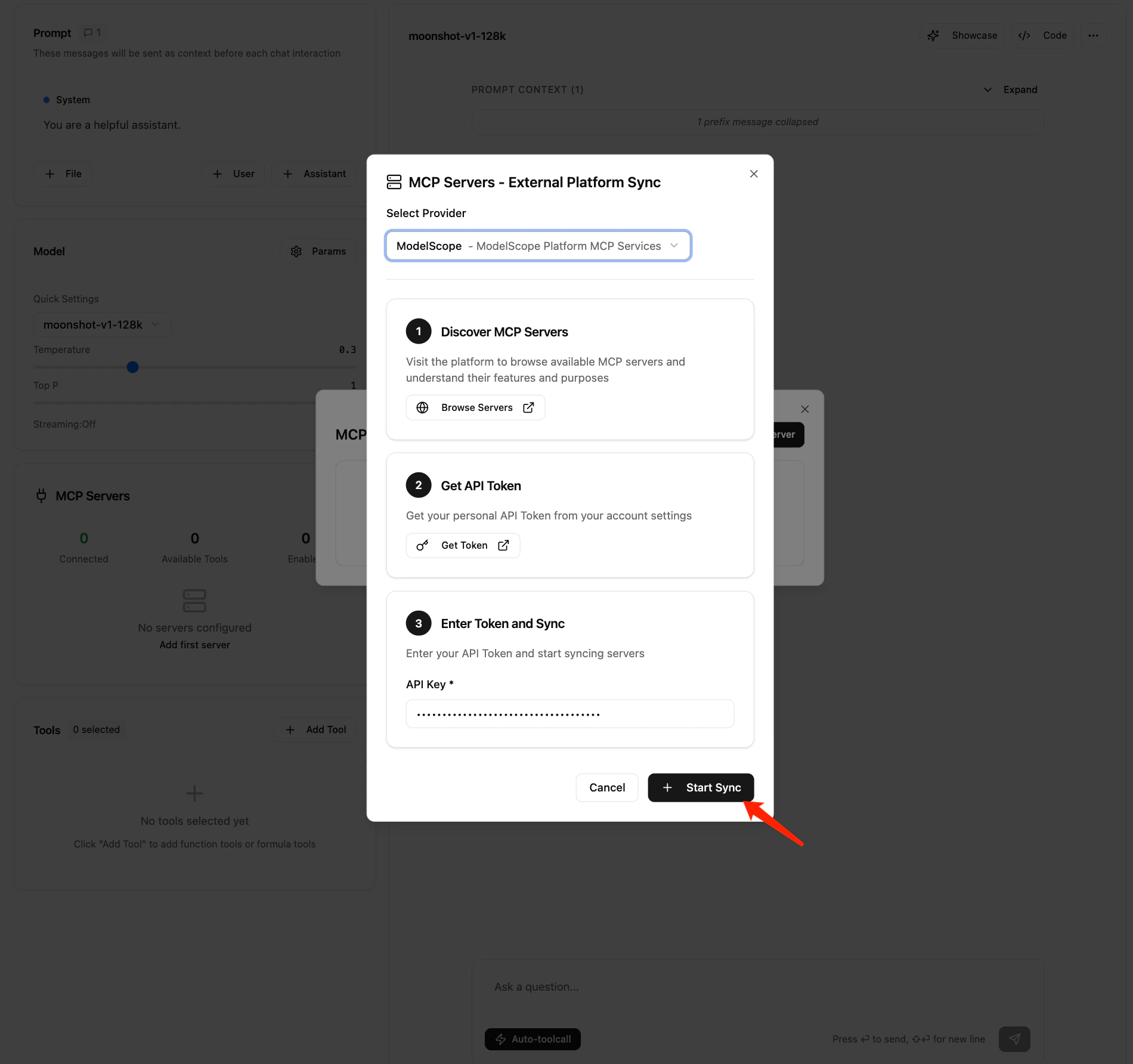
 ### Enter Your ModelScope API Token and Sync
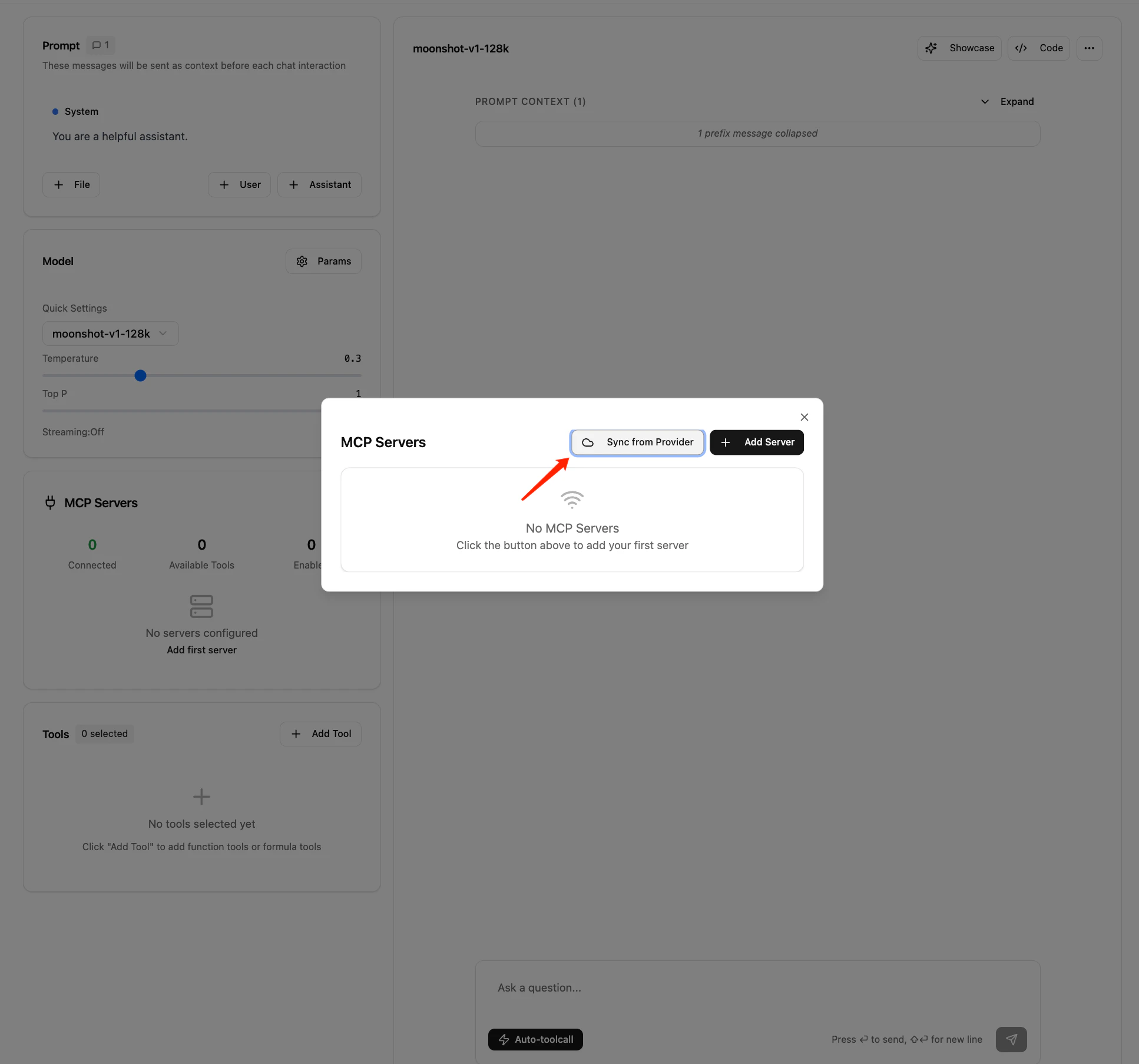
In the panel that appears, choose to sync with the external platform:
### Enter Your ModelScope API Token and Sync
In the panel that appears, choose to sync with the external platform:
 You can obtain the API token from the [ModelScope Homepage - Access Token](https://modelscope.cn/my/myaccesstoken) page:
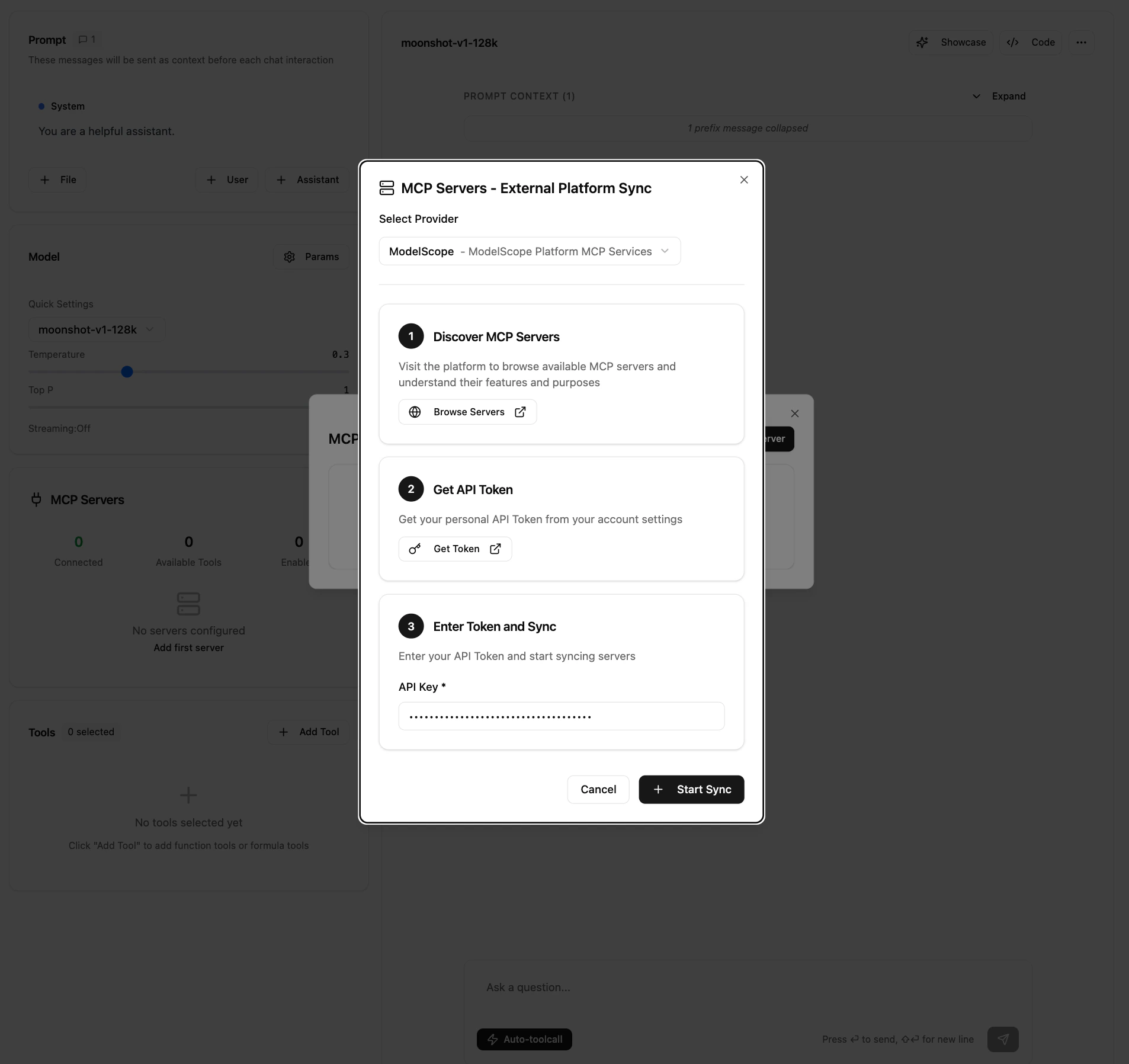 Paste the token into the field in Step 3 and click "Start Sync":
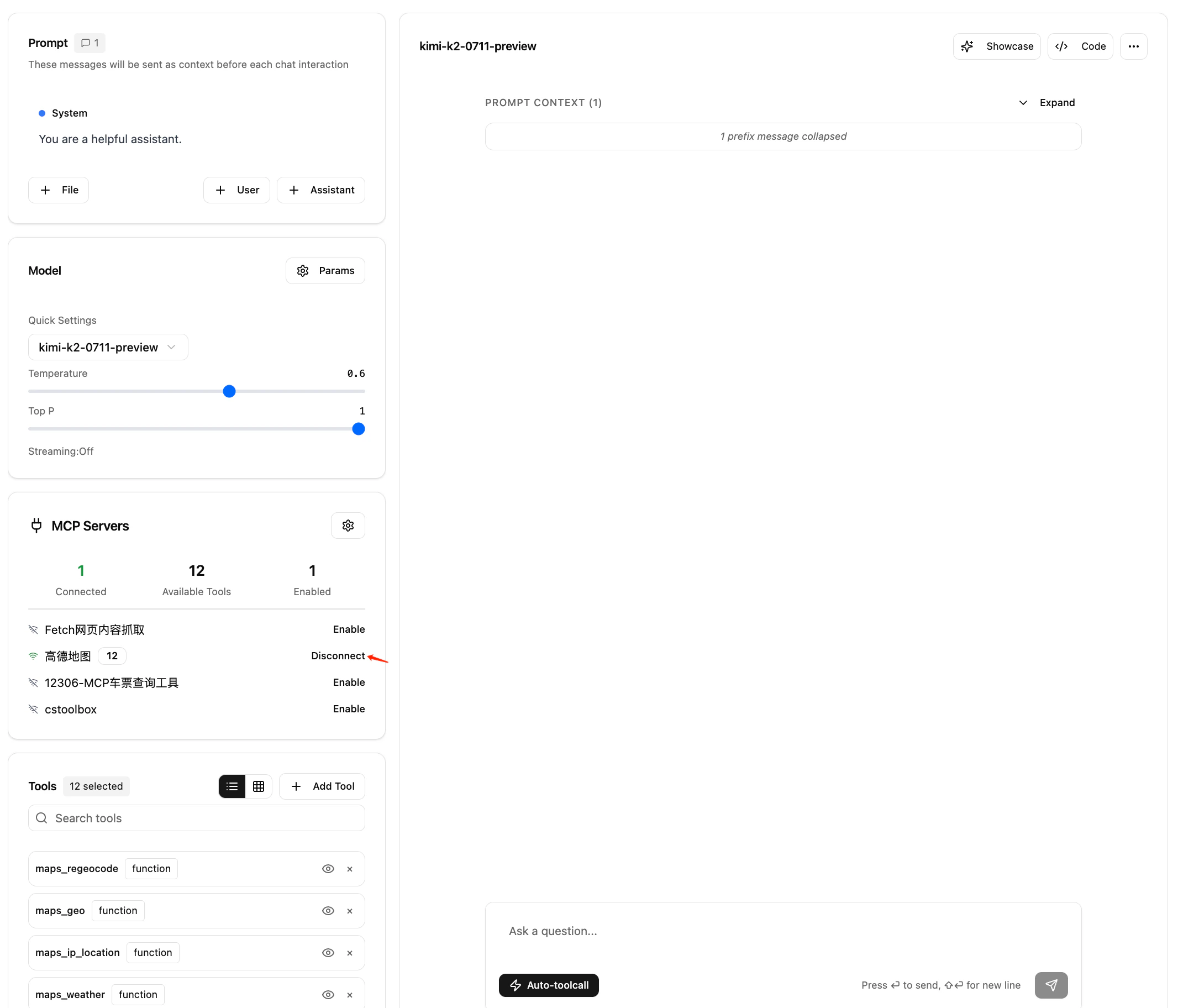
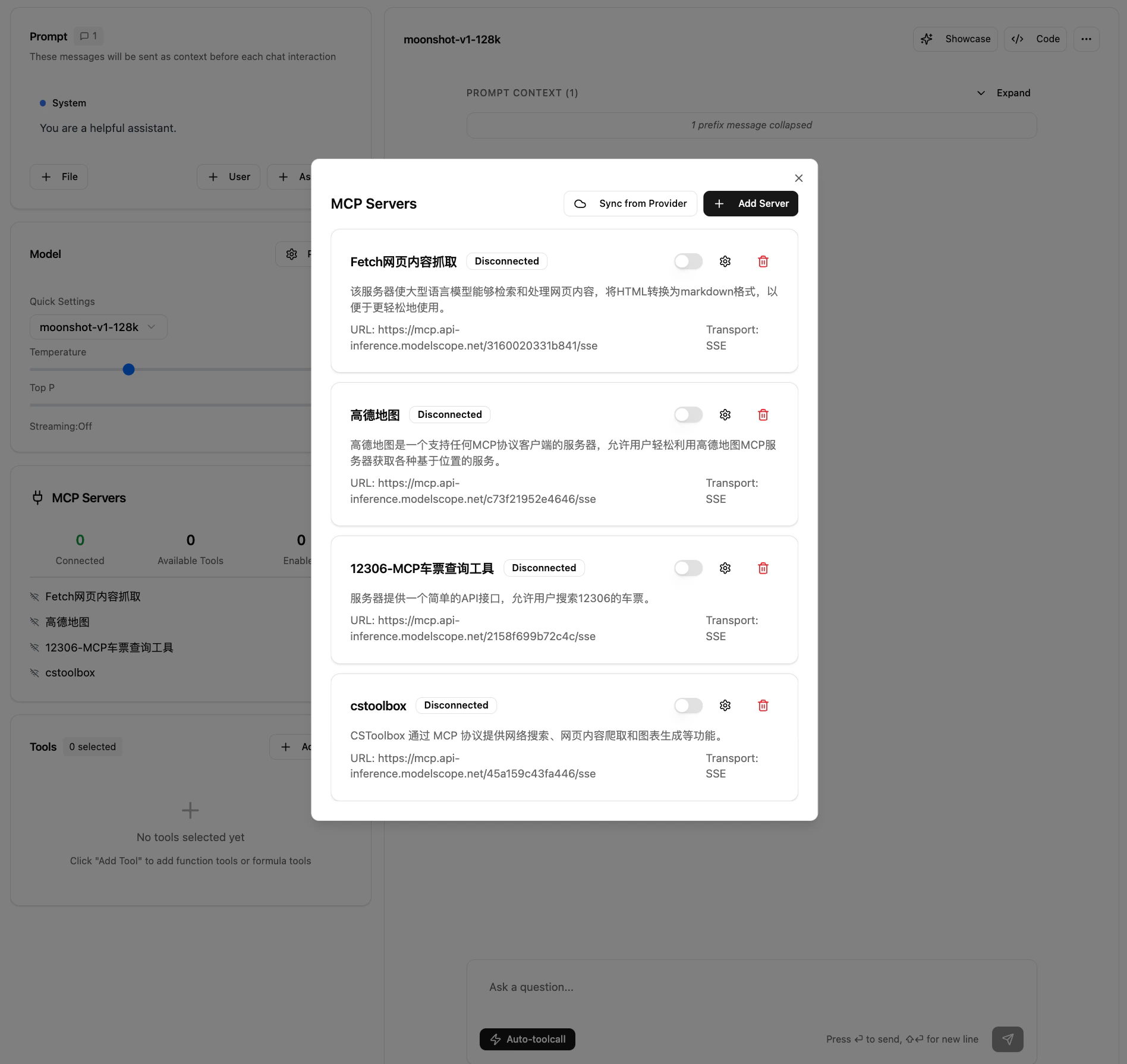
 Once syncing completes, all configured and connected ModelScope Hosted MCP services appear in the available MCP services list in Kimi Playground:
 ### Incrementally Sync MCP Services
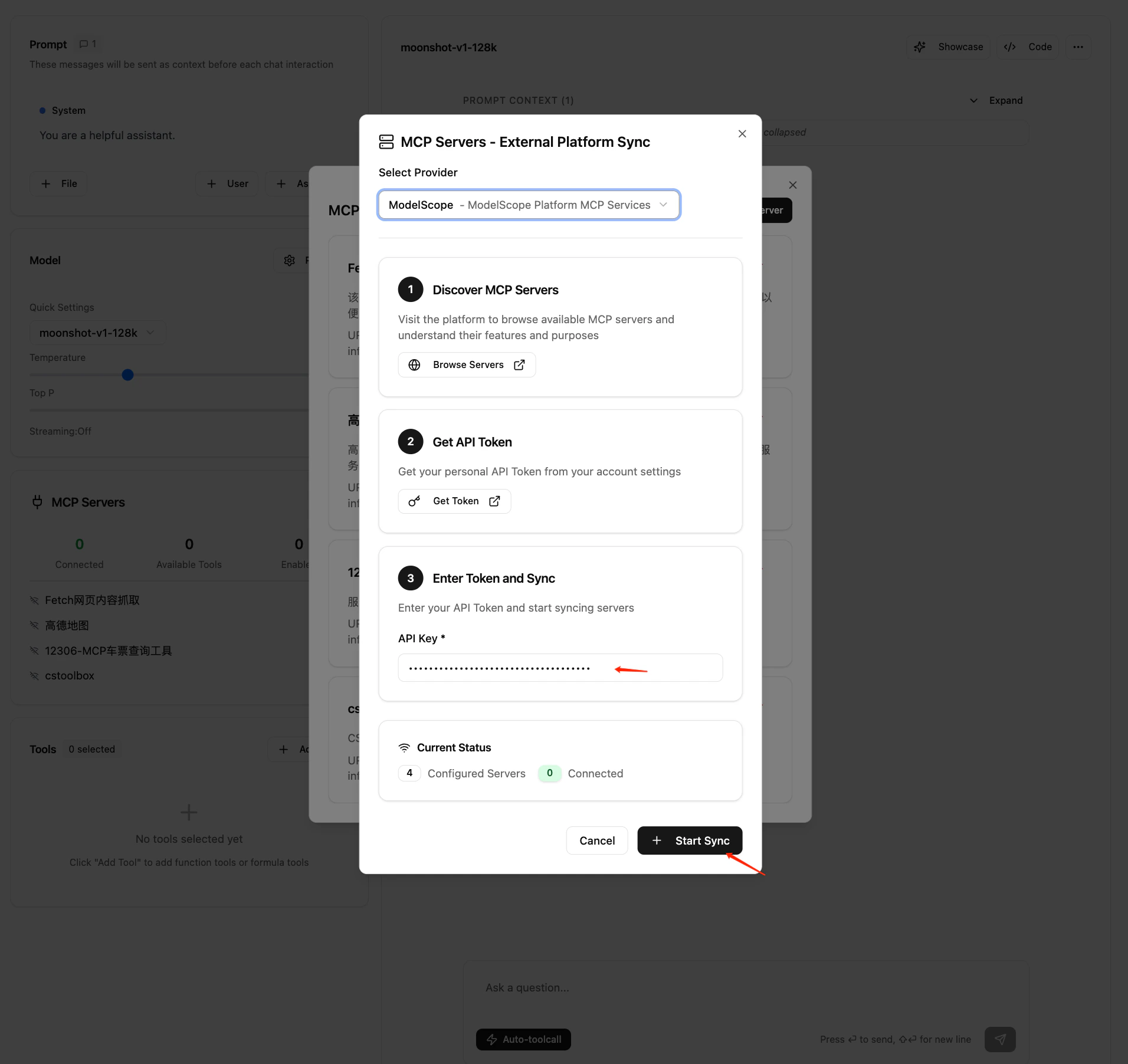
If you later add or remove hosted MCP services in the ModelScope MCP marketplace, click the sync button in "Settings - MCP Server - Sync Server" to perform an incremental update:
### Incrementally Sync MCP Services
If you later add or remove hosted MCP services in the ModelScope MCP marketplace, click the sync button in "Settings - MCP Server - Sync Server" to perform an incremental update:
 ## Enable MCP Services in a Conversation
After syncing, the imported "MCP Services List" appears on the left side of the Kimi Playground page. Multi-select and enable the MCP services you want to use in the current conversation:
## Enable MCP Services in a Conversation
After syncing, the imported "MCP Services List" appears on the left side of the Kimi Playground page. Multi-select and enable the MCP services you want to use in the current conversation: