> ## Documentation Index
> Fetch the complete documentation index at: https://platform.kimi.ai/docs/llms.txt
> Use this file to discover all available pages before exploring further.
# Use Kimi K3 in Hermes Agent
> Install Hermes Agent, connect it to the Global Kimi Open Platform, and enable Kimi K3 text, image, and video understanding.
[Hermes Agent](https://github.com/nousresearch/hermes-agent) is an open-source AI agent from Nous Research. It provides persistent memory, tool use, and interfaces including the CLI, Telegram, Discord, Slack, and WhatsApp.
This guide connects Hermes Agent to the Global Kimi Open Platform and configures `kimi-k3` with its 1M-token context window and native visual understanding. The API Base URL in Hermes is `https://api.moonshot.ai/v1`; the actual Chat Completions endpoint is `https://api.moonshot.ai/v1/chat/completions`.
The screenshots in this guide use Hermes Agent v0.18.2. Menu labels may change in later releases, but continue to use a Global Kimi Open Platform API key, `kimi-k3`, and `https://api.moonshot.ai/v1`.
## Prerequisites
Complete these prerequisites before you start. Follow the linked official guides for installation and account setup.
Install or update Hermes Agent with the official instructions.
Create a Global Kimi Open Platform API key and keep it private.
Confirm that the account has available balance, then check limits, budgets, and organization settings.
You need available balance to call the API. See [Rate Limits](/docs/pricing/limits) for the current tiers. If your organization uses an IP whitelist, follow [Organization Best Practices](/docs/guide/org-best-practice) and add the public egress IPv4 address of the computer or gateway that calls the API.
## Step 1: Select the Global Kimi provider and K3
Run the model configuration wizard:
```bash theme={null}
hermes model
```
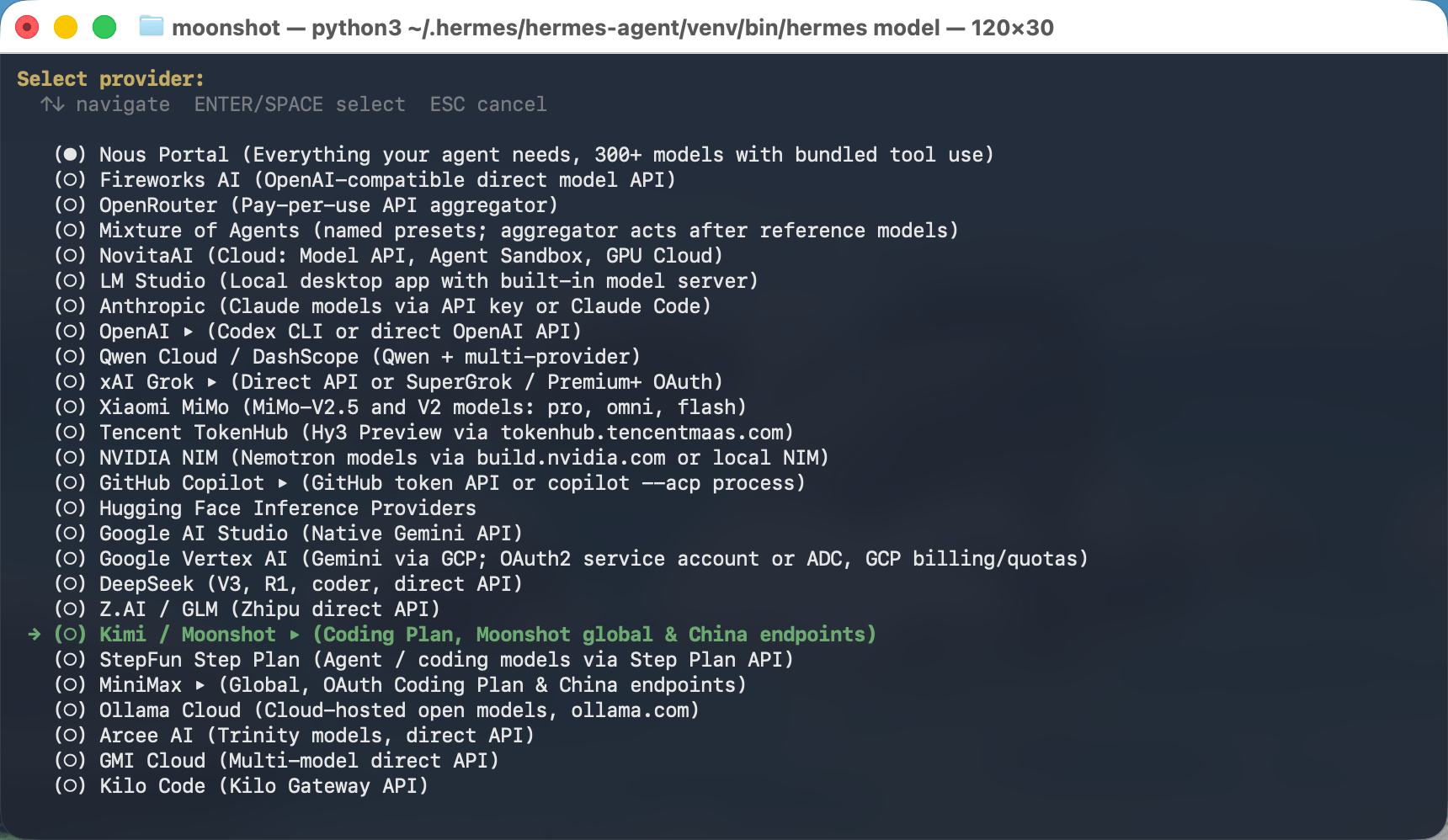
Select **Kimi / Moonshot** in the provider list.
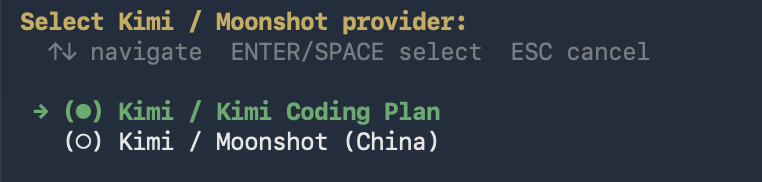
 In Hermes Agent v0.18.2, select the **first submenu item**, currently labeled **Kimi / Kimi Coding Plan**. This is also the built-in entry for the Global Moonshot API. When prompted for `KIMI_API_KEY`, paste the key created at `platform.kimi.ai`; Hermes masks it while you type.
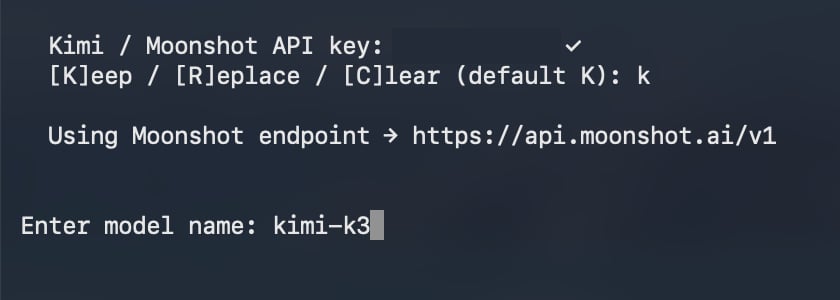
 For a Global Open Platform key, Hermes should print:
```text theme={null}
Using Moonshot endpoint → https://api.moonshot.ai/v1
```
For a Global Open Platform key, Hermes should print:
```text theme={null}
Using Moonshot endpoint → https://api.moonshot.ai/v1
```
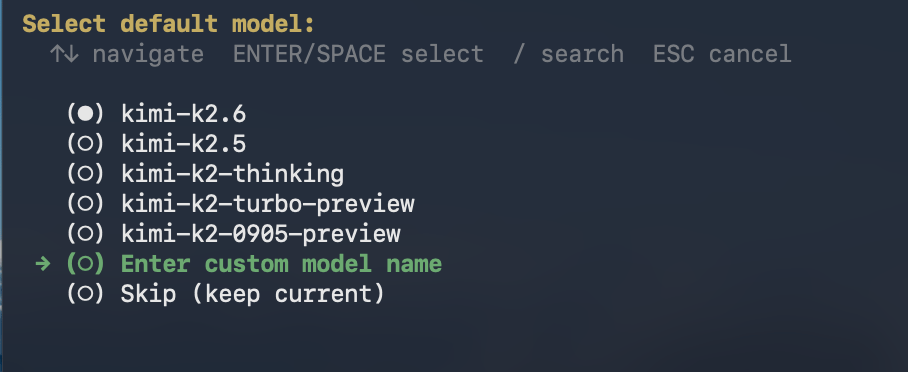
 If `kimi-k3` is not in the model list, select **Enter custom model name**, then enter `kimi-k3`. Do not add a `moonshot/` prefix.
 Do not put the API key in `config.yaml`, command arguments, screenshots, or a Git repository. This guide uses a Global Kimi Open Platform key; do not substitute a key from another Kimi service or region.
## Step 2: Add the complete K3 configuration
Run:
```bash theme={null}
hermes config edit
```
Append the `kimi-k3-global` item below to the existing `custom_providers` list, then merge the remaining fields into their corresponding top-level sections. If a top-level section already exists, update its fields instead of creating a duplicate. Preserve unrelated settings and existing custom providers.
```yaml theme={null}
custom_providers:
- name: kimi-k3-global
base_url: https://api.moonshot.ai/v1
key_env: KIMI_API_KEY
api_mode: chat_completions
model: kimi-k3
extra_body:
reasoning_effort: max
models:
kimi-k3:
context_length: 1048576
supports_vision: true
model:
provider: custom:kimi-k3-global
default: kimi-k3
context_length: 1048576
supports_vision: true
agent:
reasoning_effort: max
auxiliary:
vision:
provider: main
model: kimi-k3
extra_body:
reasoning_effort: max
```
This configuration explicitly enables Kimi K3's currently supported maximum reasoning effort, 1M-token context window, and native image understanding. It also routes video analysis through the same K3 main provider. `reasoning_effort` is a top-level Chat Completions request field that supports `low`, `high`, and `max` with `max` as the default; the examples use `max`. See the [Model Parameter Reference](/docs/api/models-overview).
Set `base_url` to `https://api.moonshot.ai/v1` only. Hermes uses an OpenAI-compatible client and appends `/chat/completions` automatically. Do not put the complete request endpoint in `base_url`.
## Step 3: Enable and use the official video tool
Run:
```bash theme={null}
hermes tools enable video
```
Hermes can now call its official `video_analyze` tool. For a local video, the tool reads the complete file, encodes it as `data:video/...;base64,...`, and sends it to `kimi-k3` in one `video_url` content block. This path does not extract frames locally with FFmpeg first.
Hermes Agent v0.18.2 supports common formats including MP4, WebM, MOV, AVI, MKV, and MPEG, with an approximately 50 MB Base64 video payload limit. This limit comes from the Hermes client's video tool hard cap, not from the Kimi API. Trim or compress larger videos before use.
Run the enable command only once. For later video analysis, no additional setup or `/video` command is required. In a Hermes chat, provide an absolute video path and explicitly ask it to call `video_analyze`:
```text theme={null}
Call video_analyze on /absolute/path/to/demo.mp4, summarize the video, and list three details that can be confirmed from the visuals.
```
You can also provide a directly accessible HTTP or HTTPS video URL.
## Step 4: Start Hermes Agent and use K3
Start a new session so the provider, context, and tool settings are loaded:
```bash theme={null}
hermes
```
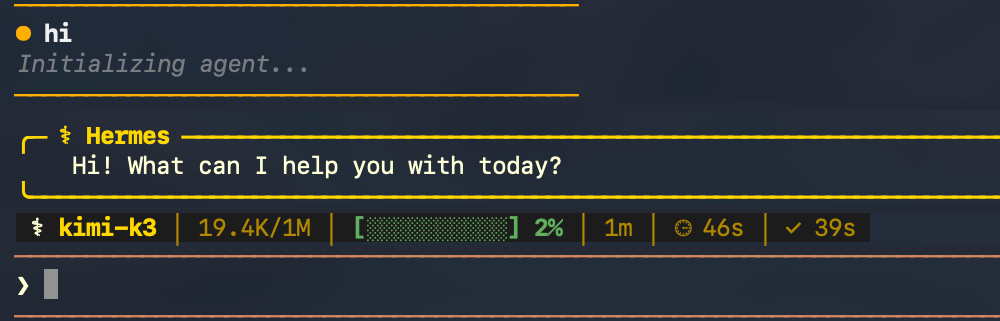
The status bar should show `kimi-k3` and a `1M` context window.
Do not put the API key in `config.yaml`, command arguments, screenshots, or a Git repository. This guide uses a Global Kimi Open Platform key; do not substitute a key from another Kimi service or region.
## Step 2: Add the complete K3 configuration
Run:
```bash theme={null}
hermes config edit
```
Append the `kimi-k3-global` item below to the existing `custom_providers` list, then merge the remaining fields into their corresponding top-level sections. If a top-level section already exists, update its fields instead of creating a duplicate. Preserve unrelated settings and existing custom providers.
```yaml theme={null}
custom_providers:
- name: kimi-k3-global
base_url: https://api.moonshot.ai/v1
key_env: KIMI_API_KEY
api_mode: chat_completions
model: kimi-k3
extra_body:
reasoning_effort: max
models:
kimi-k3:
context_length: 1048576
supports_vision: true
model:
provider: custom:kimi-k3-global
default: kimi-k3
context_length: 1048576
supports_vision: true
agent:
reasoning_effort: max
auxiliary:
vision:
provider: main
model: kimi-k3
extra_body:
reasoning_effort: max
```
This configuration explicitly enables Kimi K3's currently supported maximum reasoning effort, 1M-token context window, and native image understanding. It also routes video analysis through the same K3 main provider. `reasoning_effort` is a top-level Chat Completions request field that supports `low`, `high`, and `max` with `max` as the default; the examples use `max`. See the [Model Parameter Reference](/docs/api/models-overview).
Set `base_url` to `https://api.moonshot.ai/v1` only. Hermes uses an OpenAI-compatible client and appends `/chat/completions` automatically. Do not put the complete request endpoint in `base_url`.
## Step 3: Enable and use the official video tool
Run:
```bash theme={null}
hermes tools enable video
```
Hermes can now call its official `video_analyze` tool. For a local video, the tool reads the complete file, encodes it as `data:video/...;base64,...`, and sends it to `kimi-k3` in one `video_url` content block. This path does not extract frames locally with FFmpeg first.
Hermes Agent v0.18.2 supports common formats including MP4, WebM, MOV, AVI, MKV, and MPEG, with an approximately 50 MB Base64 video payload limit. This limit comes from the Hermes client's video tool hard cap, not from the Kimi API. Trim or compress larger videos before use.
Run the enable command only once. For later video analysis, no additional setup or `/video` command is required. In a Hermes chat, provide an absolute video path and explicitly ask it to call `video_analyze`:
```text theme={null}
Call video_analyze on /absolute/path/to/demo.mp4, summarize the video, and list three details that can be confirmed from the visuals.
```
You can also provide a directly accessible HTTP or HTTPS video URL.
## Step 4: Start Hermes Agent and use K3
Start a new session so the provider, context, and tool settings are loaded:
```bash theme={null}
hermes
```
The status bar should show `kimi-k3` and a `1M` context window.
 ### Use an image
Attach a local image with an absolute path:
```text theme={null}
/image /absolute/path/to/example.png
```
You can also copy an image to the clipboard, run `/paste`, and then enter your question. Hermes sends the image to `kimi-k3` as native visual input.
## Troubleshooting
### `kimi-k3` is missing from the model list
Run `hermes model` again, select **Kimi / Moonshot > Kimi / Kimi Coding Plan**, then choose **Enter custom model name** and enter `kimi-k3`.
### Hermes resolves the wrong endpoint
For this guide, Hermes must print `Using Moonshot endpoint → https://api.moonshot.ai/v1`. Use an API key created at `https://platform.kimi.ai/console/api-keys`, then run `hermes model` again.
### The API key is rejected
Re-enter the Global Kimi Open Platform key with `hermes model`. If your organization uses an IP whitelist, confirm that the caller's public egress IPv4 address is allowed.
### You receive a 429 error
Reduce concurrent requests, wait before retrying, and check the account balance and current [rate-limit tier](/docs/pricing/limits).
### The video tool is not called
Confirm that you ran `hermes tools enable video`, explicitly ask Hermes to call `video_analyze`, and use an absolute local path. The encoded payload must remain below approximately 50 MB.
For more Kimi API guidance, see [Troubleshooting](/docs/guide/troubleshooting).
### Use an image
Attach a local image with an absolute path:
```text theme={null}
/image /absolute/path/to/example.png
```
You can also copy an image to the clipboard, run `/paste`, and then enter your question. Hermes sends the image to `kimi-k3` as native visual input.
## Troubleshooting
### `kimi-k3` is missing from the model list
Run `hermes model` again, select **Kimi / Moonshot > Kimi / Kimi Coding Plan**, then choose **Enter custom model name** and enter `kimi-k3`.
### Hermes resolves the wrong endpoint
For this guide, Hermes must print `Using Moonshot endpoint → https://api.moonshot.ai/v1`. Use an API key created at `https://platform.kimi.ai/console/api-keys`, then run `hermes model` again.
### The API key is rejected
Re-enter the Global Kimi Open Platform key with `hermes model`. If your organization uses an IP whitelist, confirm that the caller's public egress IPv4 address is allowed.
### You receive a 429 error
Reduce concurrent requests, wait before retrying, and check the account balance and current [rate-limit tier](/docs/pricing/limits).
### The video tool is not called
Confirm that you ran `hermes tools enable video`, explicitly ask Hermes to call `video_analyze`, and use an absolute local path. The encoded payload must remain below approximately 50 MB.
For more Kimi API guidance, see [Troubleshooting](/docs/guide/troubleshooting).