Batch inference is conducted for a specific project and is only available to users at Tier1 or above. If you prefer to use the API for batch processing, see the Batch API Guide.
Steps
1. Create a Batch Task
Open the Kimi Platform, go to User Center → Projects → View Project → Batches → Create Batches.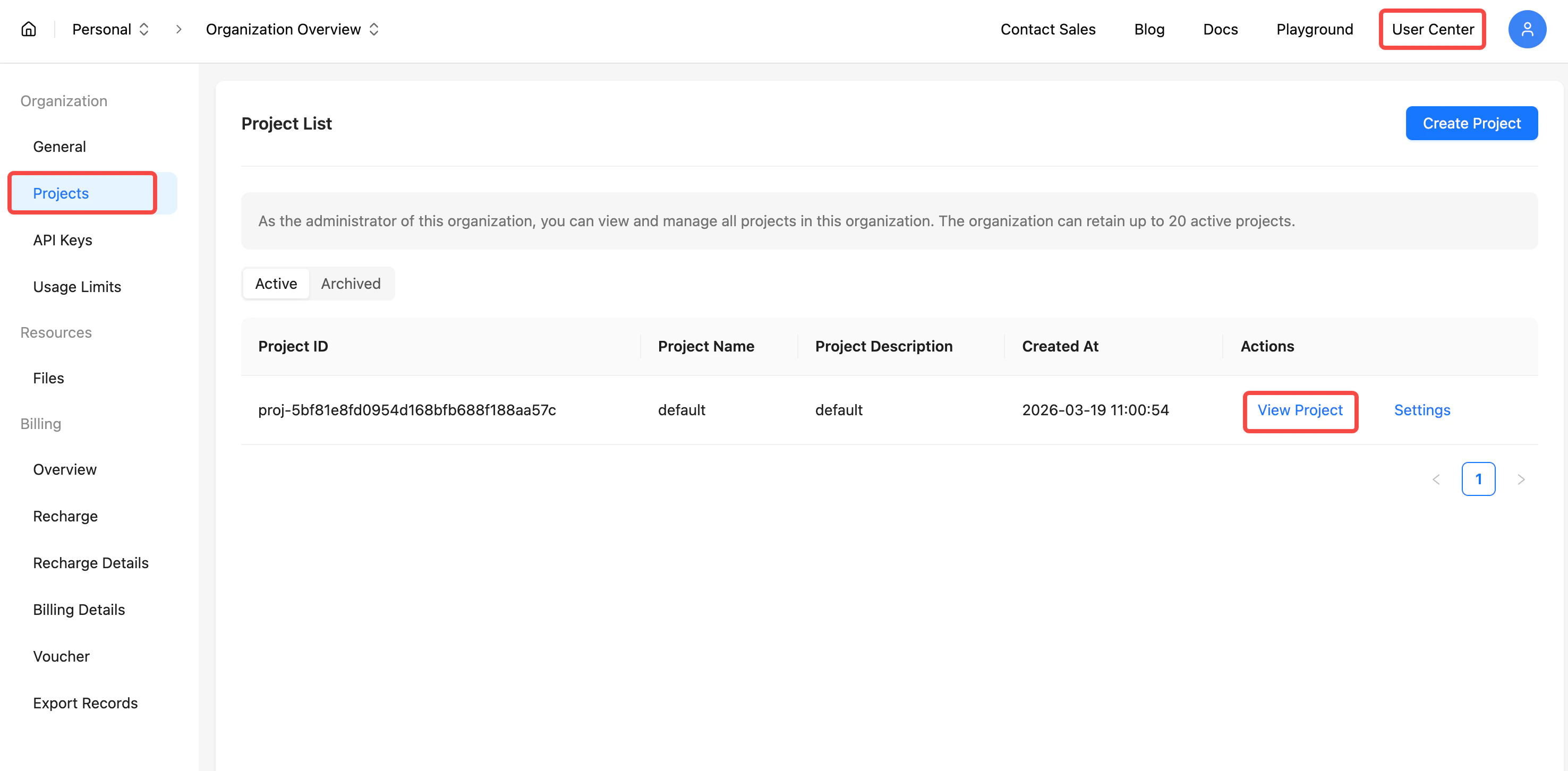
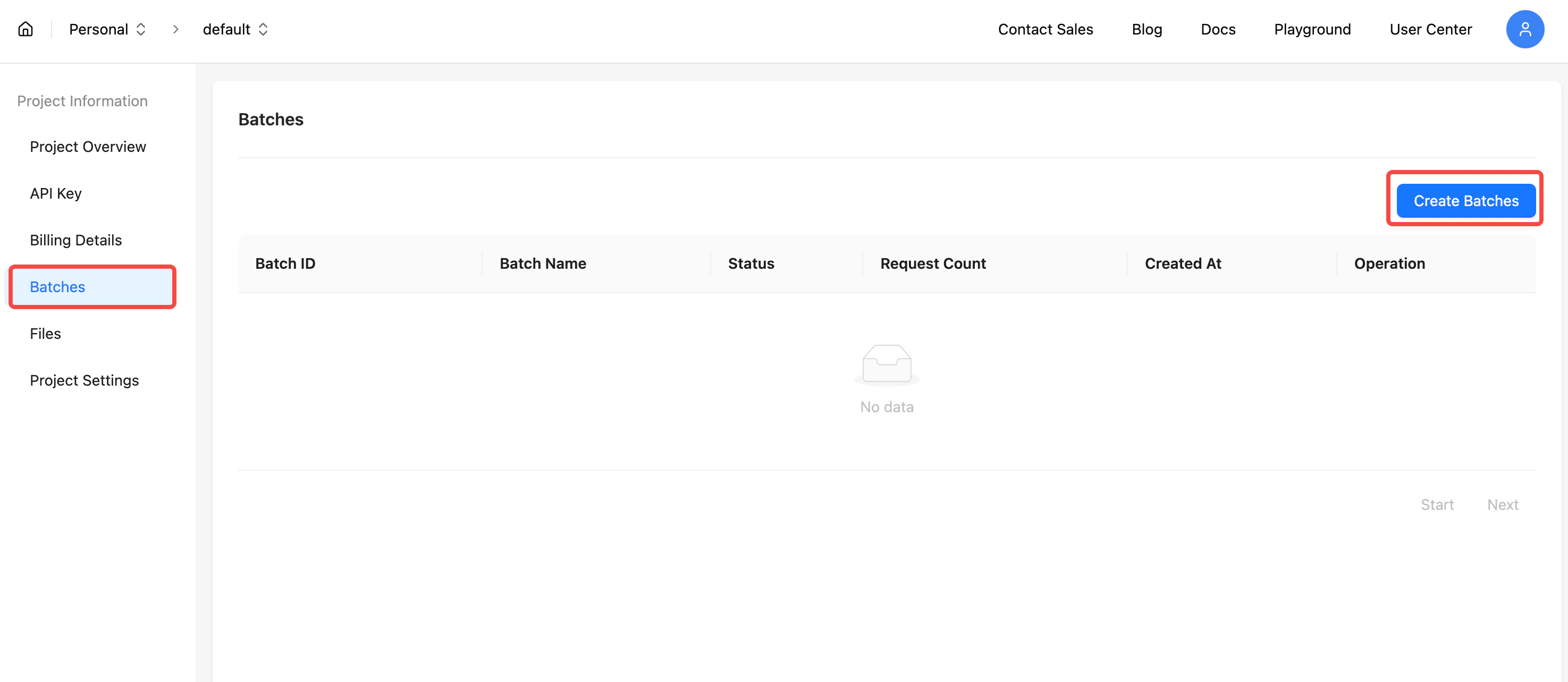
2. Configure Task Parameters
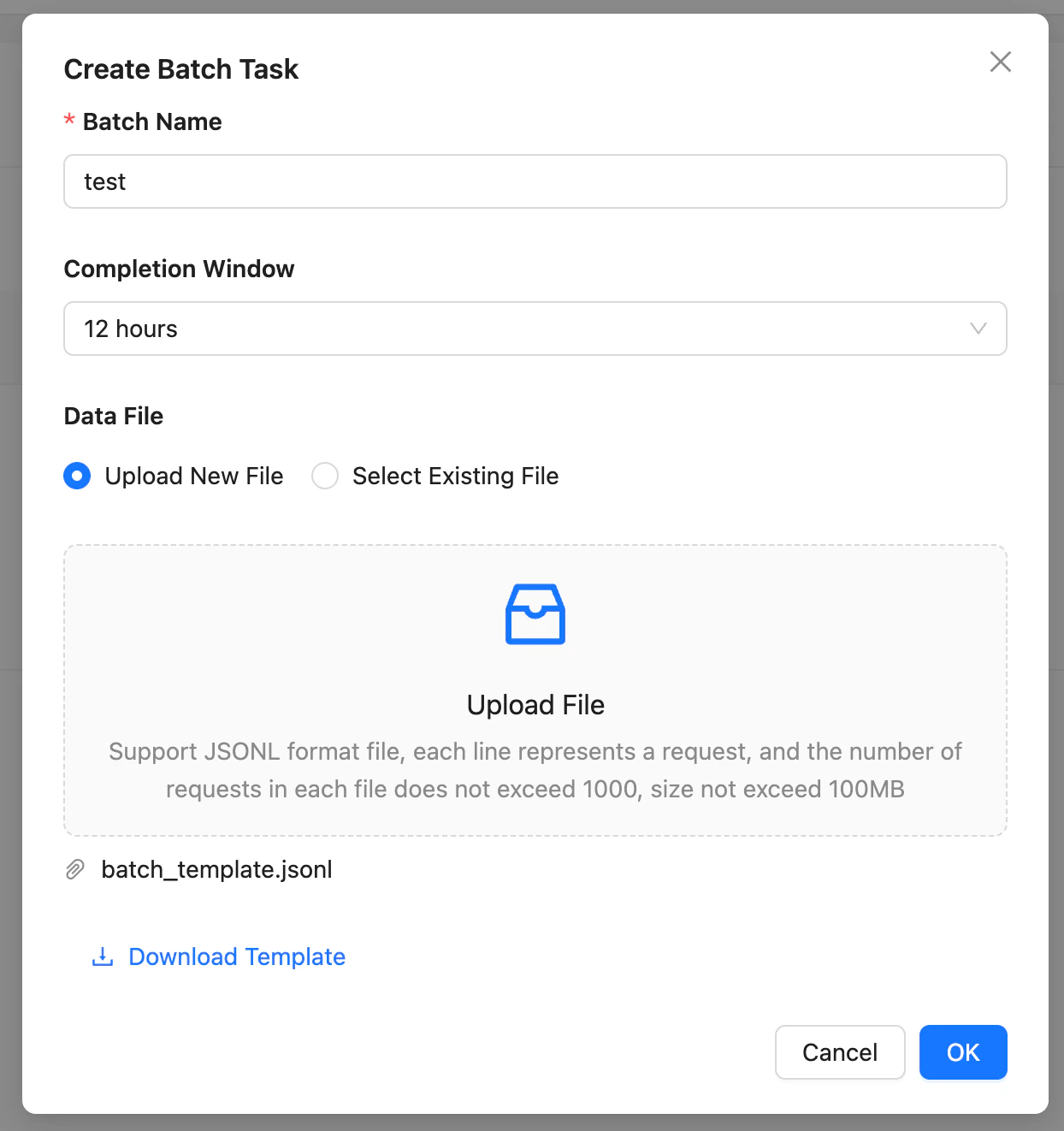
In the Create Batch Task dialog, set the following:- Batch Name: Set a name for the task
- Completion Window: Select the maximum wait time for the task
- Data File: Upload a new file or select an existing file
3. Wait for Inference to Complete
After submission, the task starts running. You can monitor the task status in the Batches list.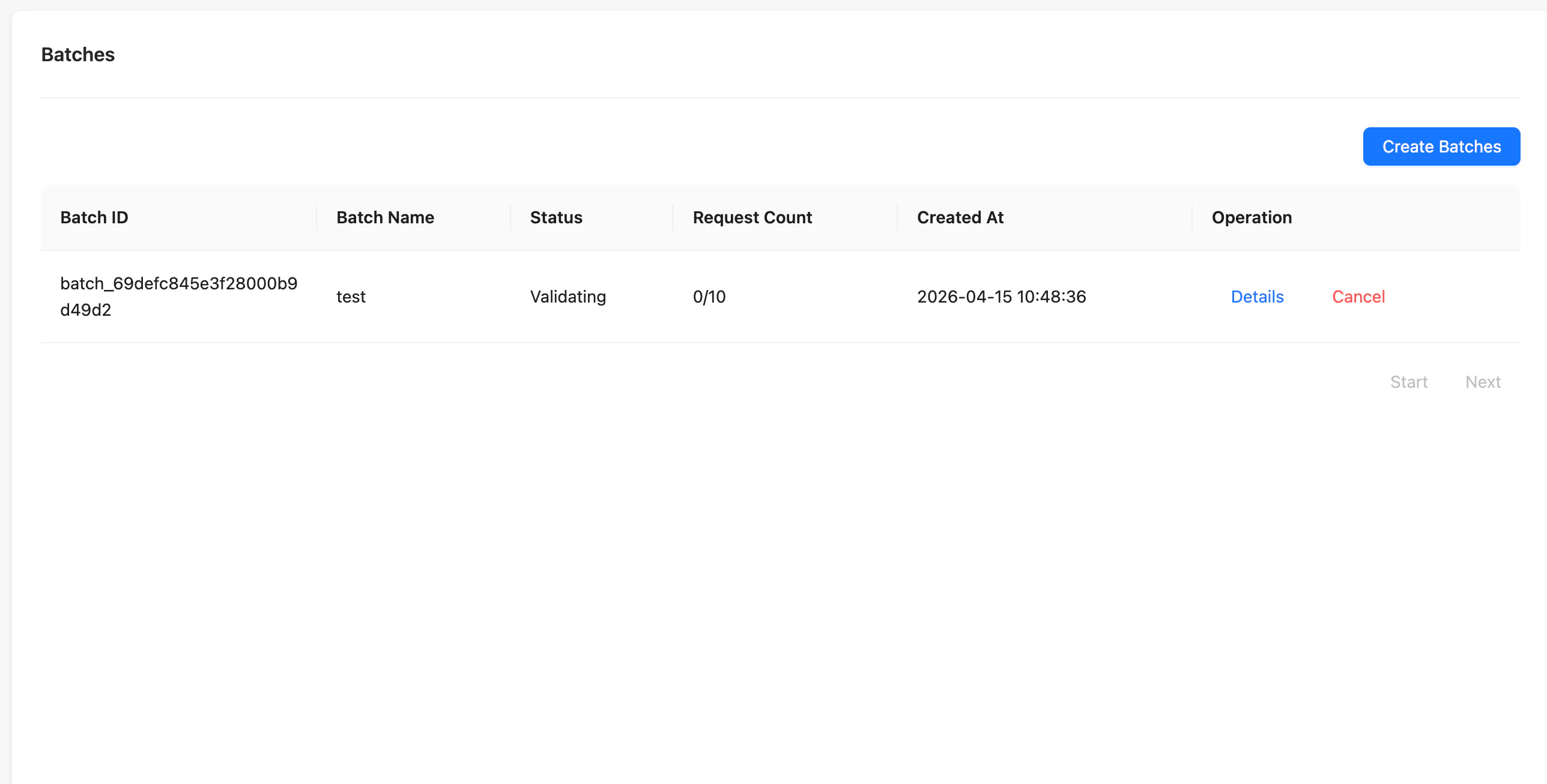
4. Download Output Results
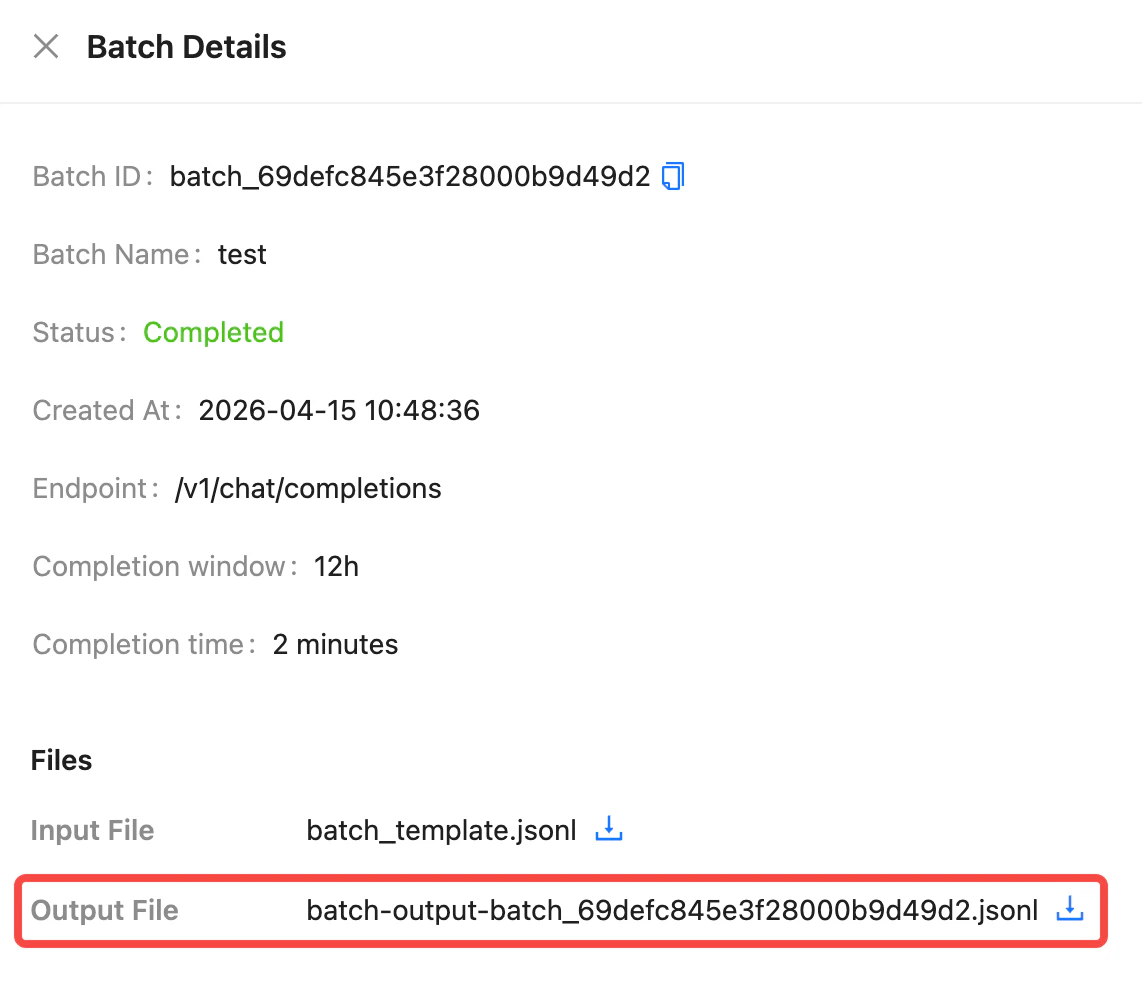
After execution is completed, click Details to view the task details and download the output file.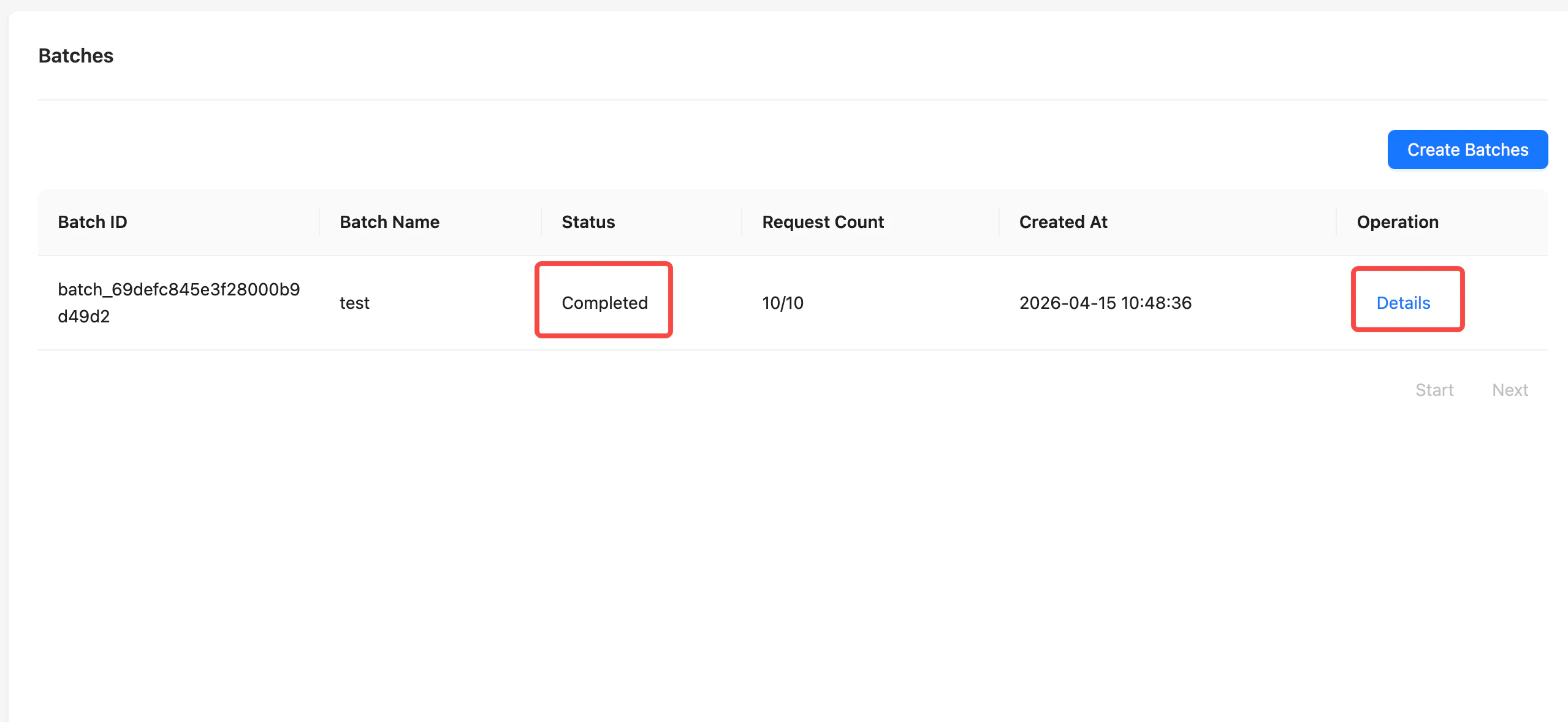
5. View File History
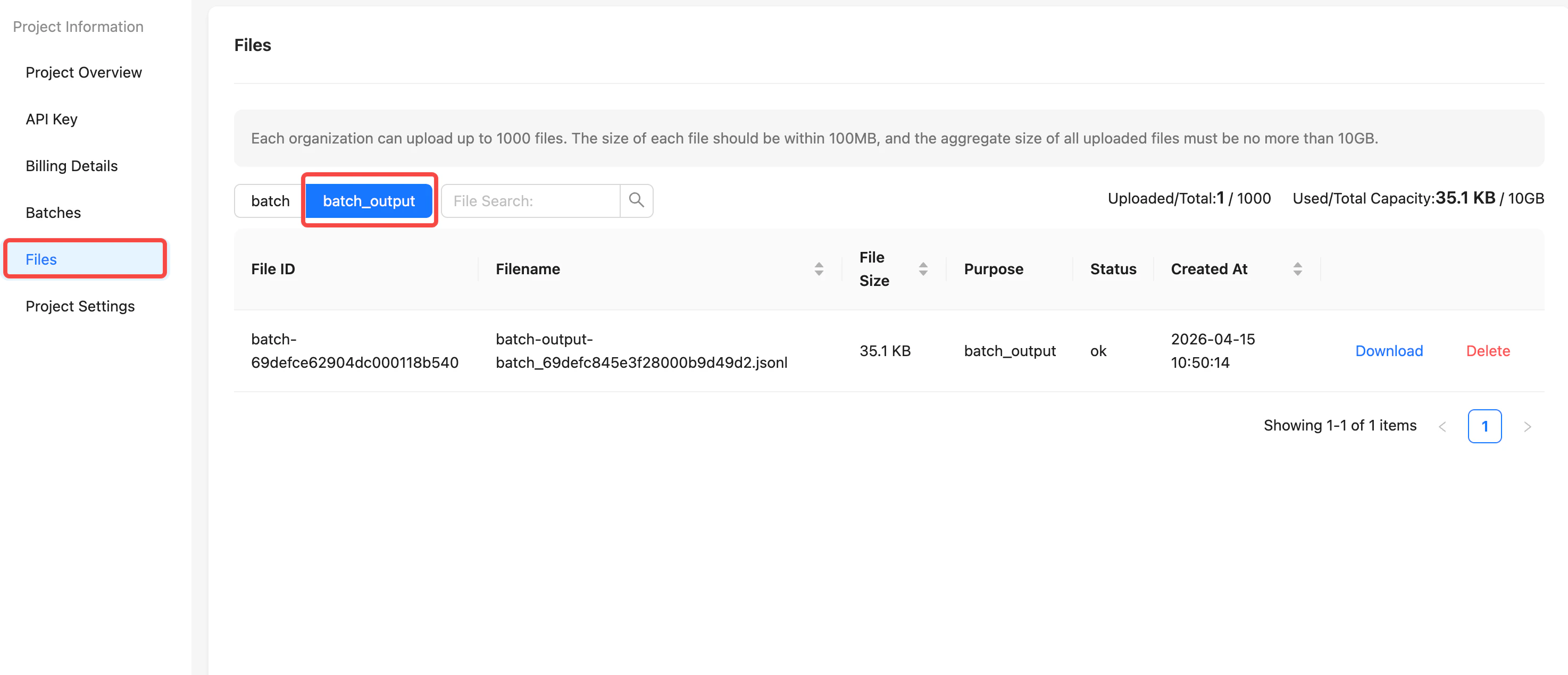
You may also find your previously uploaded files and output results in the project’s Files page.