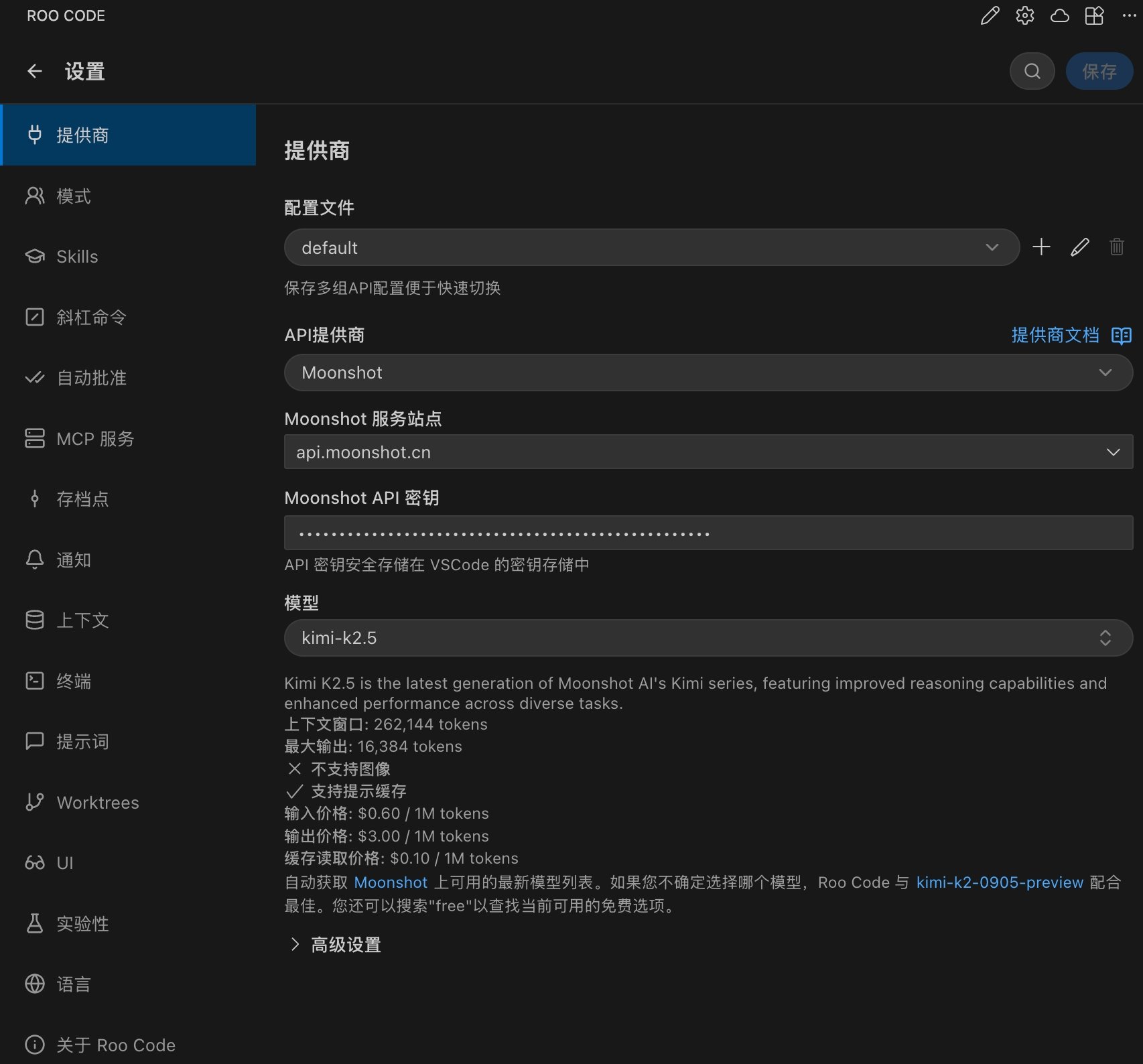
RooCode is an AI programming extension for VS Code, maintained by the RooCode Team. Its configuration options and supported capabilities may change across RooCode versions. This guide is based on the official Kimi API calling method and describes a general integration approach: forwarding RooCode model requests to the Kimi API through the Moonshot provider.
Get an API Key:
Visit Kimi Open Platform to create an API key, and choose the default project.Install RooCode
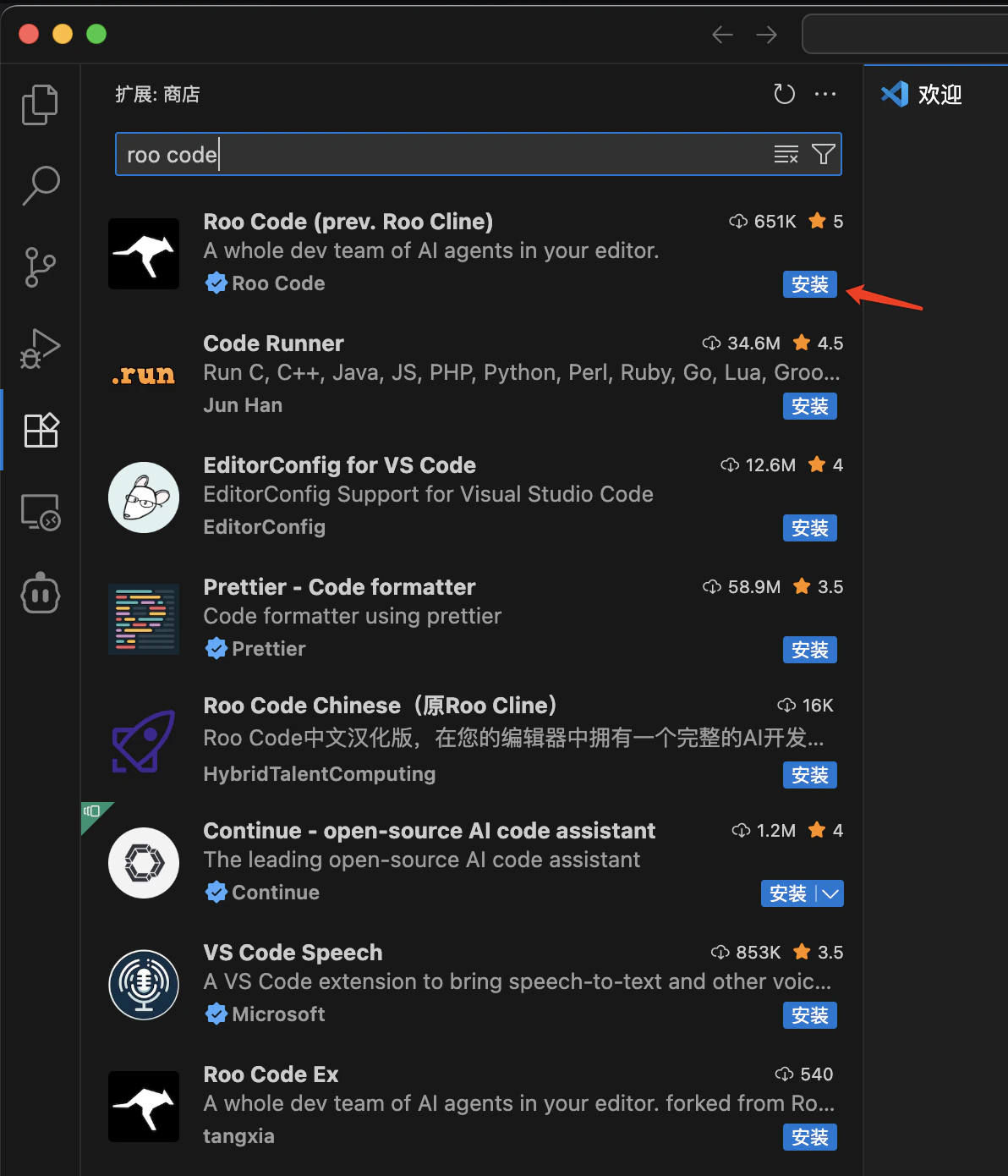
- Open VS Code.
- Click the Extensions icon in the left activity bar, or use the shortcut
Ctrl+Shift+X/Cmd+Shift+X. - Enter
roo codein the search box. - Find the
Roo Codeextension, usually published by RooCode Team. - Click the
Installbutton to install it. - After installation, you may need to restart VS Code.
Verify Installation
After installation, you can verify that RooCode was installed successfully in either of these ways:- Check whether the RooCode icon appears in the left activity bar in VS Code.
- Open the command palette with
Ctrl+Shift+P/Cmd+Shift+Pand search for commands related to “RooCode”.
Configure The Moonshot Provider
Configure RooCode as follows:- Set API Provider to
Moonshot. - Set Moonshot Entrypoint to
api.moonshot.ai. - Set Moonshot API Key to the key you obtained from Kimi Open Platform.
- Set Model to
kimi-k2.7-code. - Under Browser, select
Disable browser tool usage.