

This guide shows how to integrate Kimi’s Anthropic-compatible endpoint (the Messages API) into Claude Code. Claude Code’s interface and configuration options may change across versions; refer to your installed version.
Install Claude Code
Skip this step if Claude Code is already installed. Use the native installer (recommended by Anthropic): macOS and Linux:Install Node.js and initialize
Install Node.js and initialize
macOS and Linux:Windows (PowerShell):After installing Node.js, run the initialization once:
Not a first-time install? Clean up legacy config and environment variables
Not a first-time install? Clean up legacy config and environment variables
If you previously modified The script only removes endpoint, credential, and model-related variables from
~/.claude/settings.json with third-party tools or by hand, stale values left in its env field override environment variables exported in your terminal, so the new configuration may not take effect or model requests may be silently rewritten. Run this cleanup script first:env; it does not touch other settings in settings.json (permissions, theme, and so on).Also check shell config files such as ~/.zshrc and ~/.bashrc for stale ANTHROPIC_* exports (Windows users: check user environment variables) and delete them, otherwise they will interfere with the new configuration.Get a Kimi API Key
Create an API key on the Kimi Platform, and use it to replaceYOUR_MOONSHOT_API_KEY below.
Configure Environment Variables
Write the following variables into theenv field of ~/.claude/settings.json, then restart Claude Code for them to take effect. This example sets the HAIKU tier to kimi-k2.7-code and all other tiers to kimi-k3[1m].
env block in settings.json overrides same-named variables exported in your terminal. This file contains your API key in plain text; do not commit it to git.
Configuration Reference
Claude Code uses different model tiers for different scenarios (main conversation, background summarization, sub-agents, and so on). Configuring only some of the variables makes the corresponding scenarios fail silently:Models and Thinking Behavior
How the three models behave in Claude Code:
With thinking off, requests to
kimi-k2.7-code are rejected with 400 invalid thinking: only type=enabled is allowed for this model.
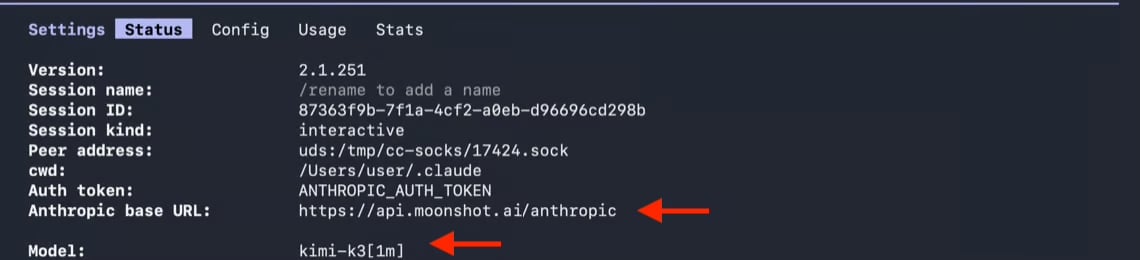
Confirm That the Configuration Took Effect
After configuring, you can first verify the endpoint and API key with curl:/status:
- Base URL should show
https://api.moonshot.ai/anthropic - Model should show
kimi-k3[1m]
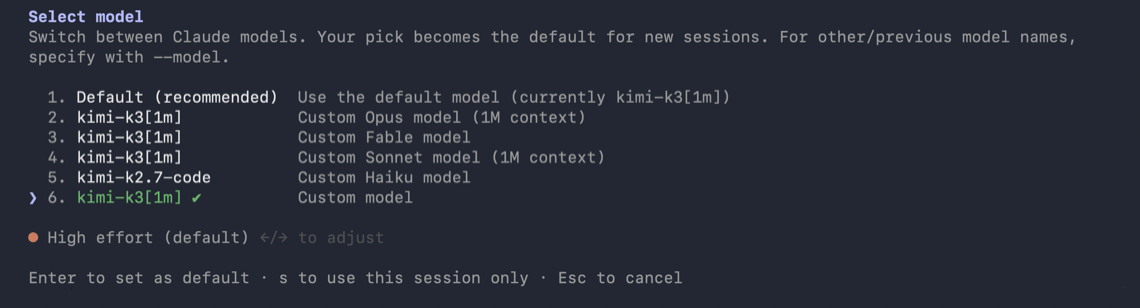
/model menu shows the models you have configured.
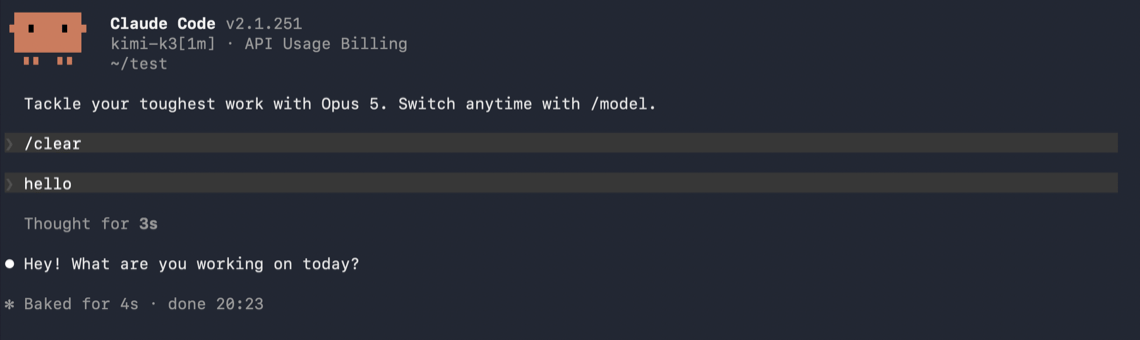
hello). Receiving a normal reply confirms the end-to-end setup works:
FAQ
401 authentication errors
401 authentication errors
- Check that
ANTHROPIC_AUTH_TOKENis a valid Kimi API key, and thatYOUR_MOONSHOT_API_KEYhas been replaced with your key; - Make sure
ANTHROPIC_BASE_URLmatches the platform where you created the key — create the key on the platform linked in “Get a Kimi API Key” above and use the endpoint shown on this page; - If you previously configured
ANTHROPIC_API_KEY, remove it to avoid conflicts withANTHROPIC_AUTH_TOKENwhen both are present.
Model not found
Model not found
Check the spelling of every model variable (
kimi-k3[1m]), and make sure there are no extra spaces or quotes.Background tasks or sub-agent errors
Background tasks or sub-agent errors
Usually
ANTHROPIC_DEFAULT_HAIKU_MODEL, ANTHROPIC_DEFAULT_FABLE_MODEL, or CLAUDE_CODE_SUBAGENT_MODEL is not configured, so the scenario requests a model name the Kimi endpoint cannot recognize. Fill them in per the Configuration Reference above.Changes do not take effect
Changes do not take effect
- Check for stale values in the
envfield of~/.claude/settings.json; run the cleanup script in the collapsed section above; - Check shell config files such as
~/.zshrcand~/.bashrcfor staleANTHROPIC_*exports; - Restart Claude Code after modifying
settings.json.
Previously signed in with /login
Previously signed in with /login
ANTHROPIC_AUTH_TOKEN takes precedence over a saved login, so no action is usually needed. Enter /status to confirm the active credential source; run /logout to clear a saved login.