

- Adjust and observe model performance and output effects under different parameters
- Experience the model’s tool calling capabilities using Kimi Open Platform’s built-in tools
- Compare different models’ effects under the same parameters
- Monitor token usage to optimize costs
Model Debugging Features
Prompt Settings- Set system prompts at the top to define behavioral guidelines that direct model output
- Support defining prompts for three roles: system/user/assistant
- Model Selection: Choose from currently available models such as Kimi K3, Kimi K2.7 Code, and Kimi K2.6
- Parameter Configuration: For supported parameters and field descriptions, see Request Parameter Description
- Send chat content through the input box below
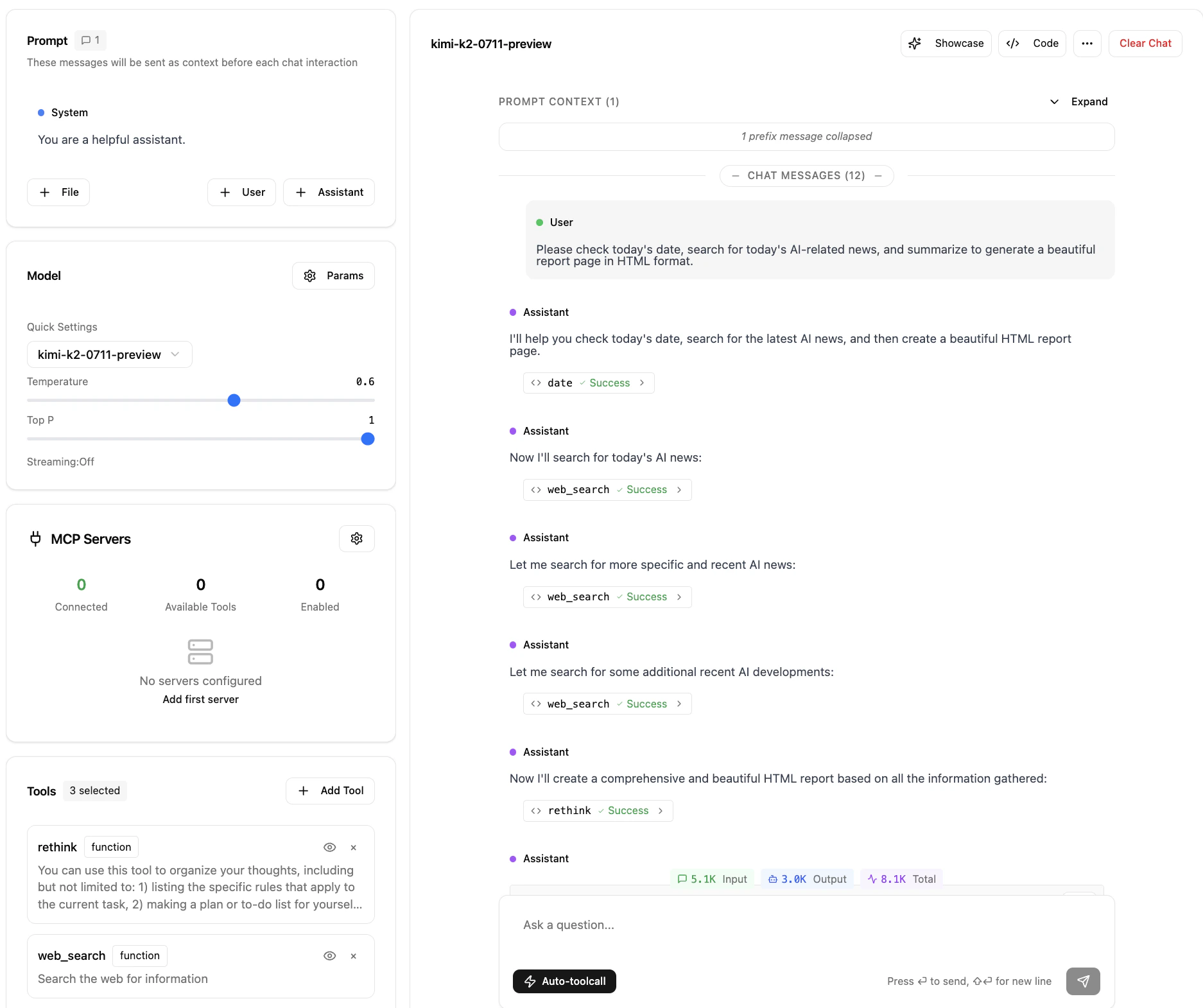
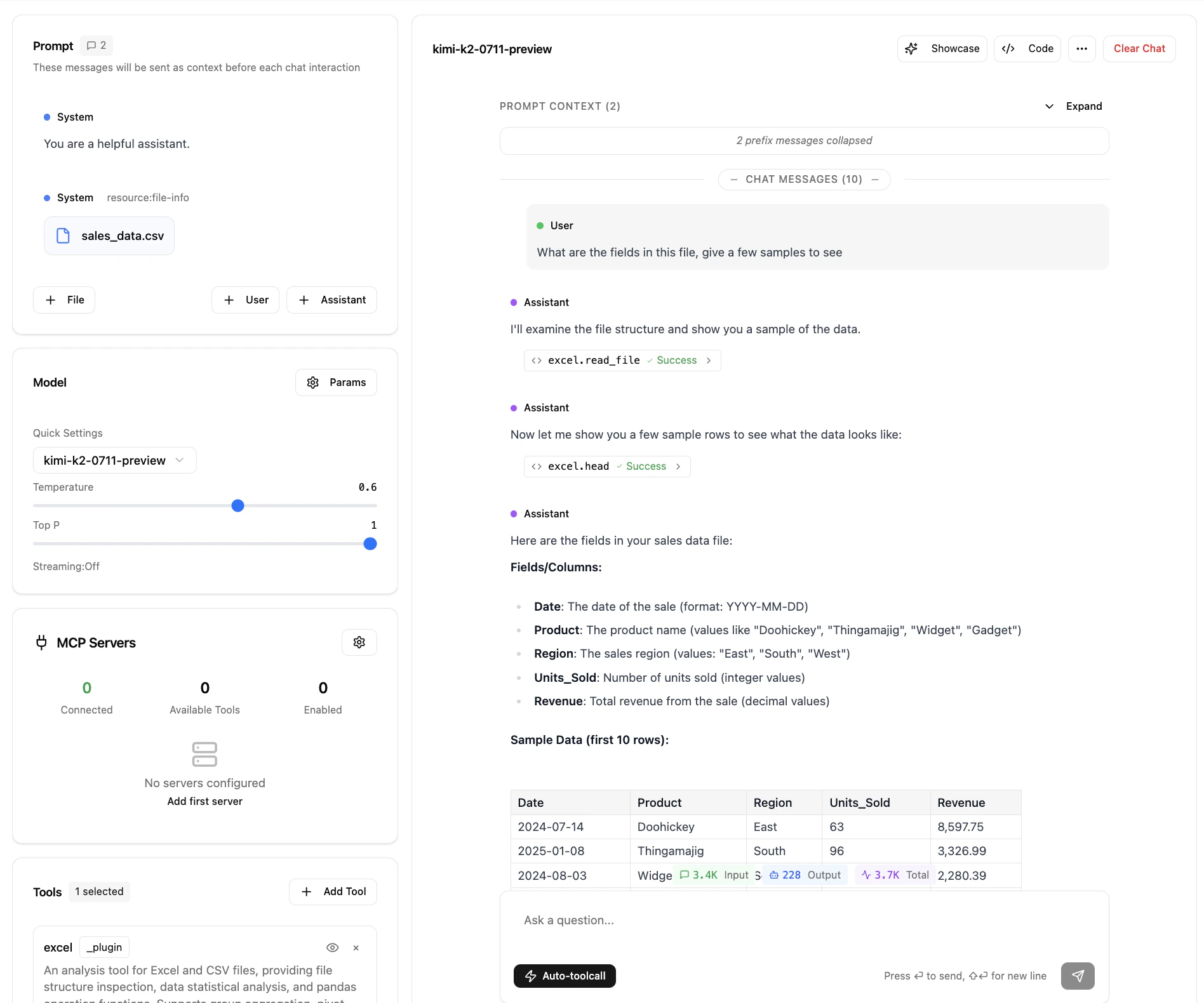
- Tool Call Display: Shows the tool calling process, including call ID/tool parameters/return results
- View Code: View and copy the API call code for the current session
- Bottom Statistics: Displays the input/output/total token consumption for this conversation, including context history messages and prompt information
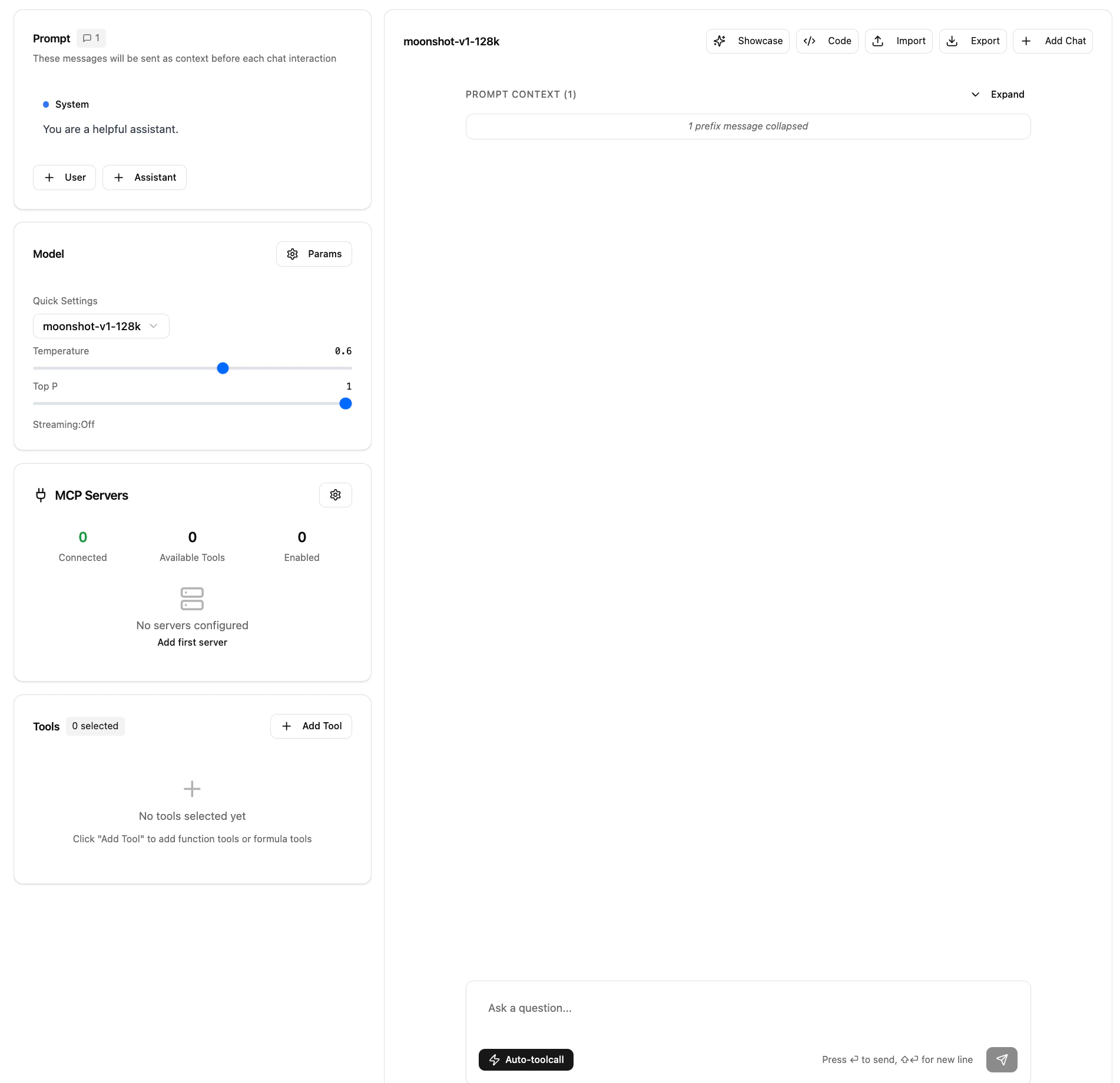
Tool Debugging
Official Tools
- Kimi Open Platform provides officially supported tools that execute for free. You can select tools in the playground, and the model will automatically determine whether tool calls are needed to complete your instructions. If tool calls are required, the model will generate parameters according to the tool’s requirements and integrate them into the final answer.
- Quota and Rate Limiting: The tools provided by Kimi Open Platform are pre-built functions that can be quickly executed online without requiring you to prepare a local tool execution environment. Currently, tool execution on Kimi Open Platform is temporarily free, but temporary rate limiting measures may be implemented when tool load reaches capacity limits.
- Currently supported tools: Date/Time tools, Excel file analysis tools, Web search tools, Random number generation tools, etc.
- Currently, it supports calling official tools through Kimi API, see the document How to Use Official Tools in Kimi API
- Custom tool upload and execution is not currently supported.
Use MCP Server
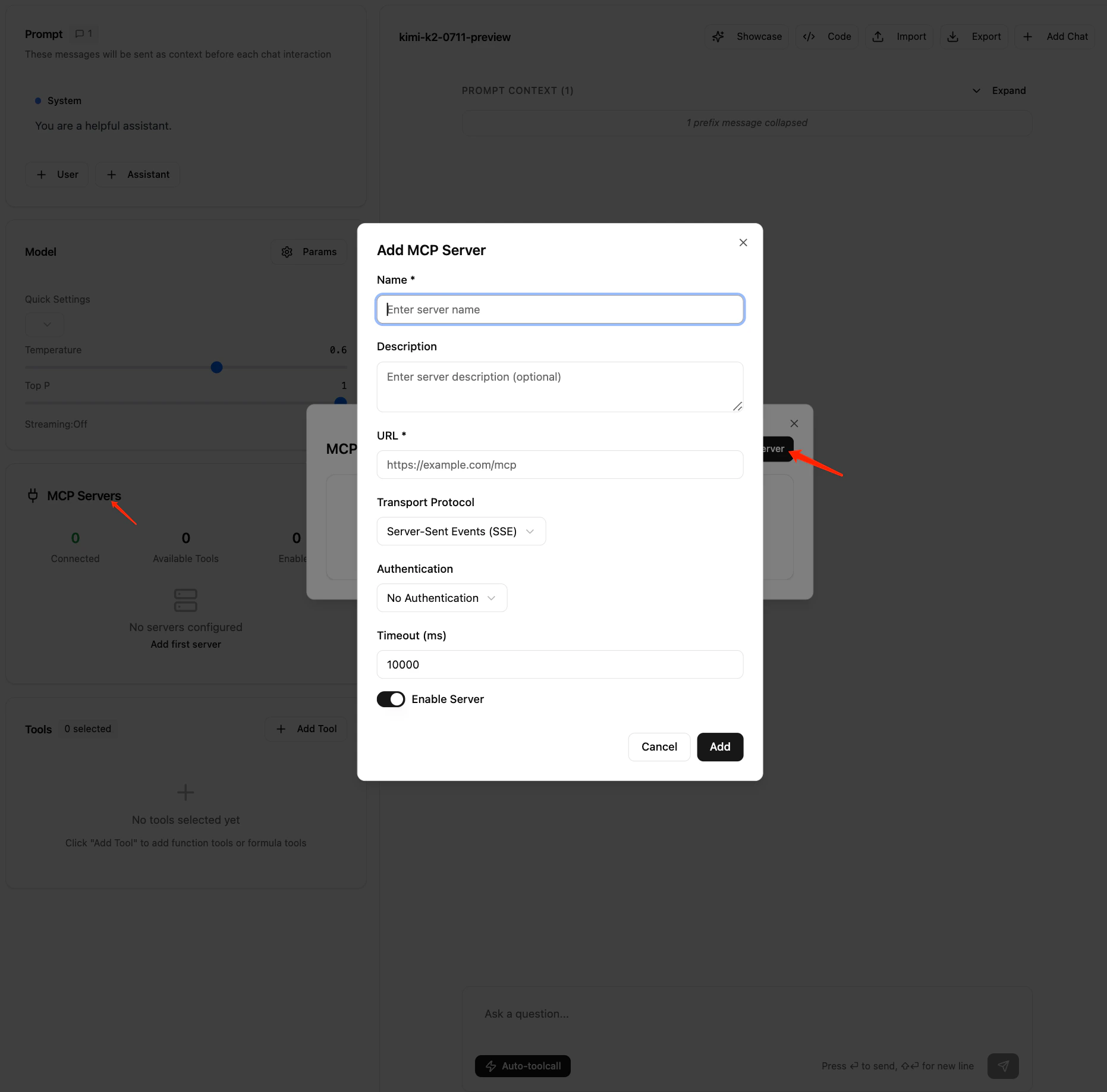
- In Kimi Playground, you can configure ModelScope MCP servers to use ModelScope’s tools.
- Configuration steps: Configure ModelScope MCP Server in Playground
- You can configure other MCP servers by adding MCP server features, inputting or selecting MCP server URL/transport protocol/authentication method, and clicking add.
Show Case 1: Today’s News Report
- Scenario: Using tool capabilities to request the model to search for today’s news and organize it into an HTML web report
- Tool Selection: date tool, web_search tool, rethink tool
- Note: The web_search tool calls Kimi Open Platform’s web search service. Single web searches are billed, see Pricing for specific billing standards
- Click the showcase button on the page to quickly experience the tool effects
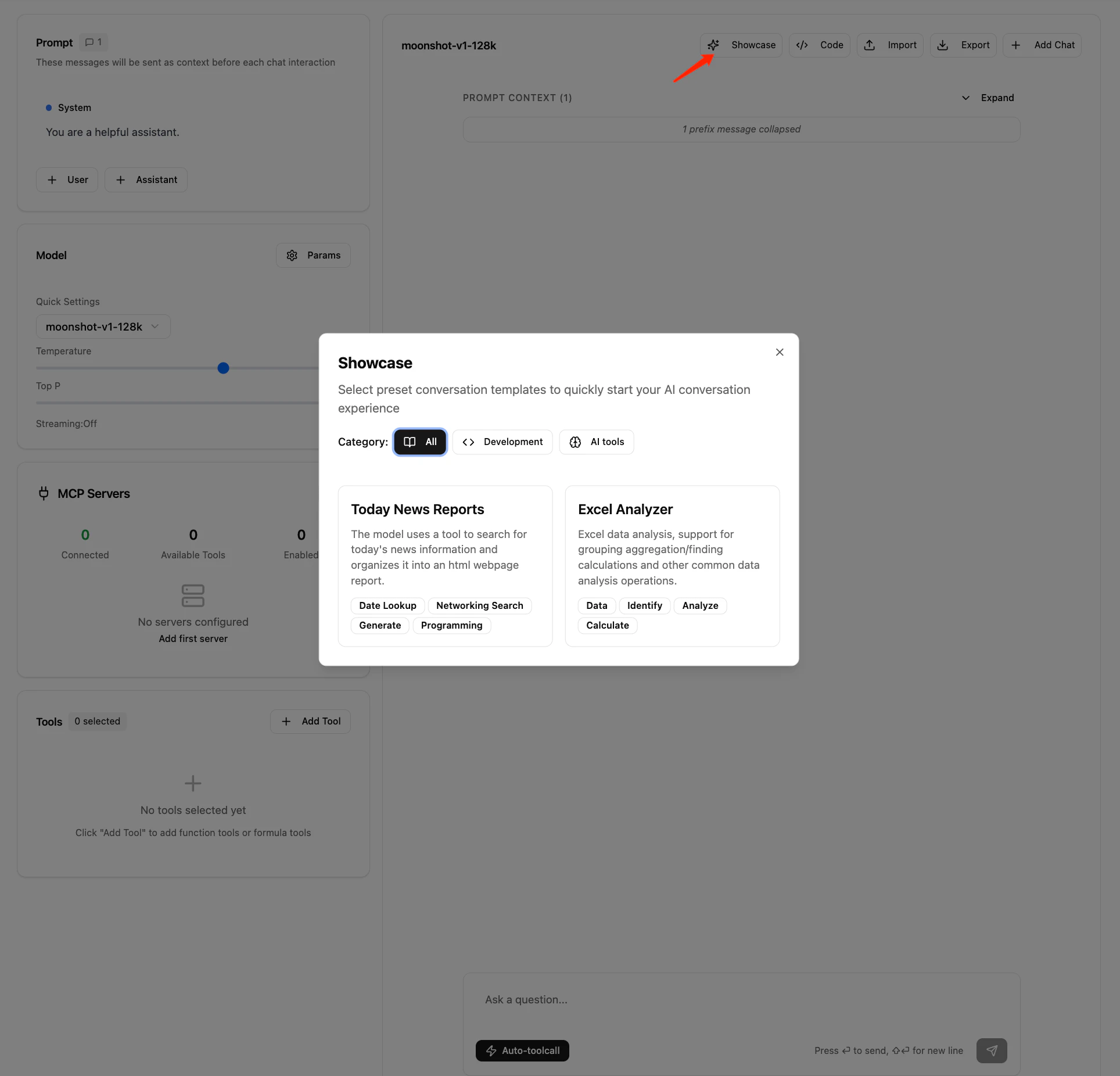
Show Case 2: Spreadsheet Analysis Tool
- Tool Selection: Excel analysis tool
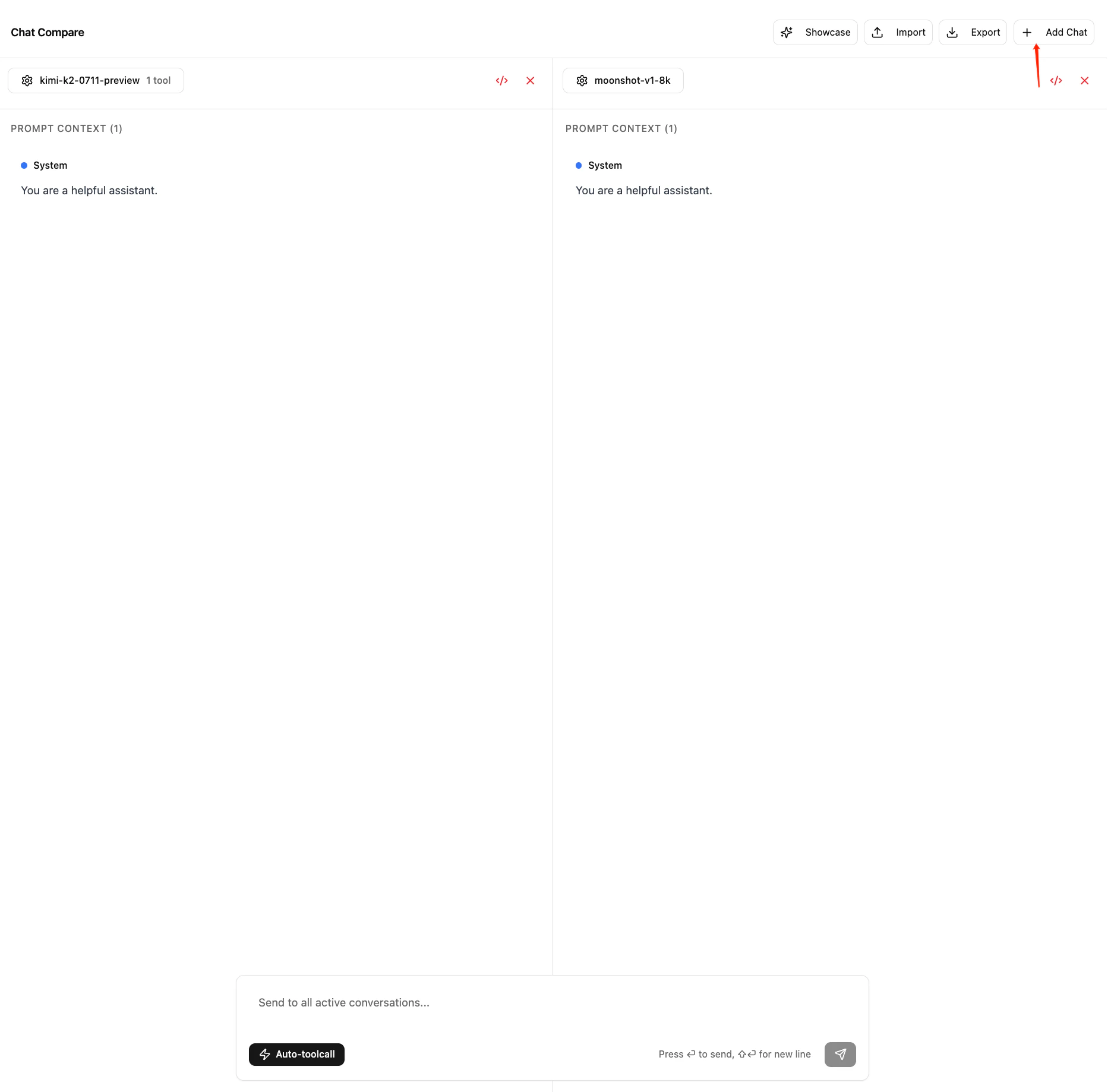
Model Comparison
- Create new conversations through the add conversation feature, supporting up to 3 models running simultaneously
Share Conversations
- Export: Export the current conversation content, including all configurations and context, as a .json format file
- Import: Import shared or previously exported .json conversation content, and the playground will render the session on the page
- Note: Data after rerun will regenerate and overwrite previous chat content. If the imported case includes uploaded files, the imported session cannot be rerun